How to Use Google Drive OCR on Scanned Financial Documents
Thomas Gak-Deluen9 min read
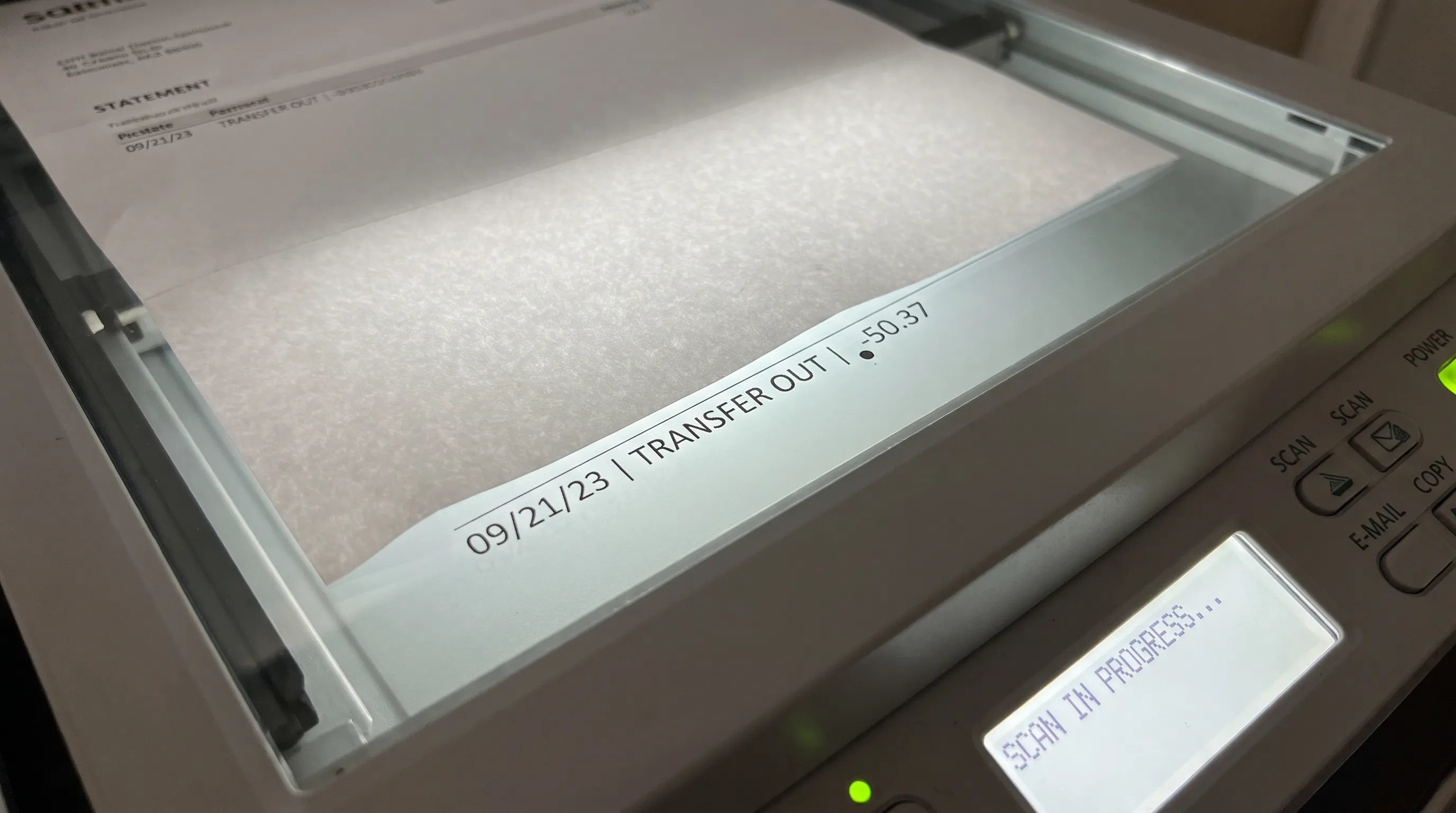
A scanned bank statement may look clear while still being impossible to copy into a spreadsheet. Google Drive OCR can turn that scan into editable text through Google Docs, making it useful for finding a payment, copying invoice details or preparing financial notes. The limitation is that readable text is not the same as a reliable transaction table.
This guide walks through the desktop workflow, explains what happens to financial layouts and shows how to check the results before using them in bookkeeping or analysis.
What Google Drive OCR can and cannot do
Optical character recognition identifies printed characters inside an image. In this workflow, Drive stores the uploaded file and Google Docs creates an editable document from it.
Google’s file conversion guidance lists PDFs and JPEG, PNG and GIF images as supported inputs. It also describes automatic language detection and provides guidance on supported languages.
For financial records, the important distinction is between recognizing characters and preserving their relationships.
| Task | What to expect |
|---|---|
| Copy an invoice number or merchant name | Useful when the scan is clear, but check the result |
| Recover text from a scanned statement | Possible, with manual review for missing or incorrect text |
| Preserve transaction columns | Unreliable on complex tables or tightly spaced layouts |
| Produce a ready-to-import spreadsheet | Not the purpose of the Google Docs conversion workflow |
| Confirm that balances reconcile | Requires a separate verification step |
Google Drive OCR is best treated as a text-recovery tool, not an accounting validation system. Even a document with correctly recognized amounts can associate those amounts with the wrong dates or descriptions.
Prepare financial scans before uploading
Start by checking whether the PDF actually needs OCR. Try selecting a transaction description in your PDF viewer. If you can copy meaningful text, the file may already contain digital text, although extracting its table structure can still require another tool.
For scanned pages, use the clearest original available. Rotate sideways pages, straighten tilted photographs and crop out the desk or background without cutting off document edges. Keep page numbers, statement dates and balance summaries visible.
Google recommends files of 2 MB or less for this conversion workflow and text at least 10 pixels high. Treat those as preparation guidelines, not a reason to compress a statement until its decimal points disappear. If necessary, split a large statement into smaller files and record their page ranges.
Google Drive OCR works more reliably with sharp printed text than with blurred photographs, faint thermal receipts or handwriting. Keep an untouched original so that every correction remains traceable to the source.
How to use Google Drive OCR step by step
Step 1: Upload the document to Drive
On a computer, sign in to the Google account approved for handling the document. Open Google Drive, select New, then File upload and choose the scanned PDF or image.
Wait for the upload to finish. Open the preview to confirm that you selected the correct account, statement period and pages. A filename such as operating-account-2026-10-pages-01-04.pdf makes split files easier to track without exposing a full account number.
If the PDF is password-protected, obtain an authorized, accessible copy before attempting conversion.
Step 2: Open the file with Google Docs
Right-click the uploaded file and choose Open with > Google Docs. Google Docs creates a separate editable document using the file’s contents.
There is no separate “OCR” button to enable in this workflow. For a supported scan, the recognition happens as part of opening it in Docs.
The Google Drive OCR output may look quite different from the source. Treat this new document as a working copy and leave the original upload unchanged for comparison. Avoid assuming that a successful conversion means every page and transaction was captured.
Step 3: Inspect the text and page coverage
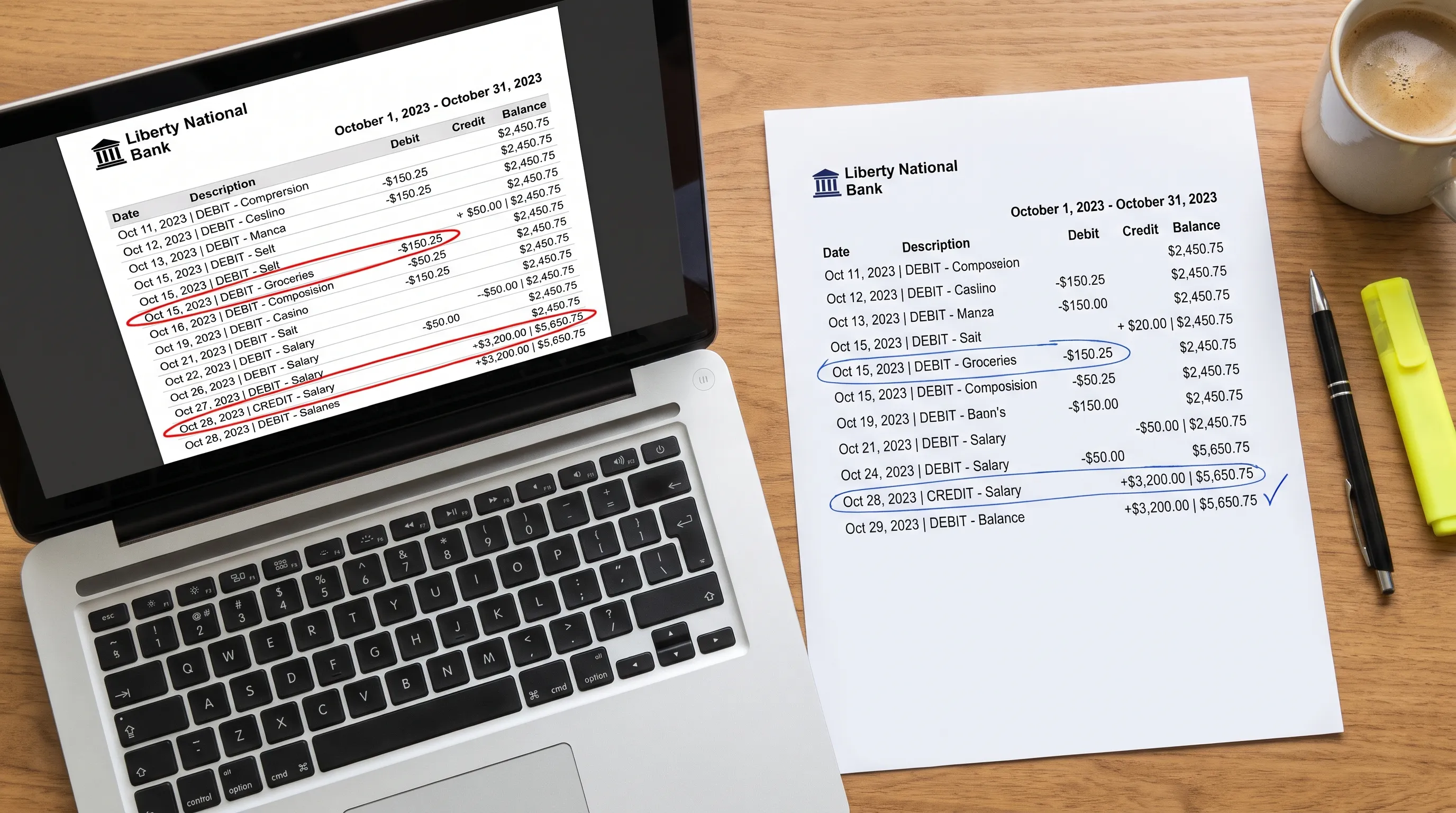
Open the original statement alongside the generated document. Check the first and last transaction on each source page, then look for page breaks where rows might have been split or dropped.
Search for a distinctive merchant name and a known amount. Confirm that they appear together, rather than in separate blocks of text. Review small but consequential characters such as decimal points, minus signs and parentheses around negative amounts.
Repeated headers can appear inside transaction text. A running balance can also be mistaken for the transaction amount when adjacent columns lose their alignment.
Step 4: Download the editable result
In Google Docs, use File > Download and choose a suitable format, such as Plain Text (.txt) or Microsoft Word (.docx).
Use plain text when you need the recognized characters without document formatting. Choose Word when you want to edit notes or retain some formatting for review.
Neither option creates a verified transaction spreadsheet. Copying the text into Google Sheets may help with a small, simple table, but you still need to reconstruct columns and check each row. Keep an unedited copy of the recognized text before making corrections.
Verify the extracted figures before using them
Google Drive OCR does not check whether extracted transactions agree with the statement’s running balance or declared totals. That review belongs between conversion and any import into accounting software.
Match rows, dates and amount columns
Start with completeness. Compare the transaction sequence against the original, checking page transitions and any transactions that wrap onto multiple lines. Exclude repeated headings and carried-forward balances from your transaction count.
Next, confirm that dates, descriptions and amounts remain connected. A recognized value of 125.00 is not useful if it has moved into the neighboring transaction’s row.
Check debit and credit columns separately. Also confirm the date convention, particularly where 04/05 could mean April 5 or May 4. Preserve currency labels and inspect decimal and thousands separators rather than relying on spreadsheet defaults.
For statements with difficult page breaks, this guide to how OCR handles multi-page financial tables explains the structural problems that simple text conversion can leave behind.
Reconcile balances against the original statement
For a deposit account using ordinary money-in and money-out conventions, check:
Opening balance + money in - money out = closing balance.
Then check each running balance where the statement provides one. Credit card statements and other account types may use different signs or balance conventions, so follow the labels on the source.
Consider this illustrative example:
| Transaction | Money out | Money in | Expected balance |
|---|---|---|---|
| Opening balance | $1,250.00 | ||
| Utility payment | $100.00 | $1,150.00 | |
| Customer payment | $250.00 | $1,400.00 |
If the debit were incorrectly entered as $110 and the credit as $260, the closing balance would still be $1,400. A closing-balance check alone would miss both errors. The intermediate balance would expose the discrepancy.
When checking Google Drive OCR results, compare balances and totals with the original document, not just with other extracted values. Two recognition errors can otherwise appear to support each other. Reconciliation also cannot prove that a document is authentic or that a transaction was categorized correctly.
Troubleshoot common conversion problems
When Google Drive OCR produces poor results, first identify whether the problem is character recognition, page coverage or layout reconstruction. Improving image quality can fix unreadable digits, but it will not necessarily restore a complicated table.
| Problem | Likely issue | Practical response |
|---|---|---|
| Missing decimals or confused digits | Blur, low contrast or excessive compression | Rescan from the original and inspect small characters |
| Columns appear as separate text blocks | Table structure was not preserved | Reconstruct carefully or use structured extraction |
| Missing transactions near page breaks | Split rows or incomplete conversion | Compare the end and beginning of every source page |
| Notes are garbled | Handwriting or overlapping annotations | Transcribe those details manually and verify them |
| Almost no usable text appears | Poor source quality or an inaccessible file | Test a clearer page and confirm the file can be opened |
Do not repeatedly compress an already faint scan to make it smaller. Split the document instead. If only one page fails, retry that page separately and retain its original page number in your working notes.
Protect sensitive documents and converted copies
Before uploading statements, confirm that your organization or client permits processing them in that Google account. A personal account may be inappropriate even if the conversion works technically.
Check sharing permissions on both the original file and the generated document, including access inherited from their folders. Keep access restricted to the people who need it. Google’s Drive sharing instructions explain the available sharing controls.
Using Google Drive OCR creates another copy of sensitive information to manage. The editable document may contain account numbers, addresses and transaction histories even when its formatting looks incomplete. Include downloaded Word files and temporary spreadsheets in your cleanup process.
Follow the applicable retention policy rather than deleting records indiscriminately. For organizational accounts, administrative retention rules may affect what happens after a user deletes a file.
If an add-on or external converter requests access to Drive, review its permissions, processing terms and retention practices separately. Do not assume that a third-party integration has the same data-handling arrangements as Google Drive itself.
When to use structured extraction instead
For occasional text lookup, the manual workflow may be sufficient. For recurring bookkeeping, large statements or accounting imports, the work of rebuilding tables and checking every value can outweigh that convenience.
There is also a distinction between Google Drive OCR and Google Cloud’s document-processing products. Google Cloud Vision provides OCR capabilities through an API, while Document AI provides document-processing services that can support structured extraction, depending on the processor. These are separate services with their own setup, billing and access controls, not features enabled by opening a file in Docs.
For bank statements, look for an output that preserves transaction rows and validates amounts against the source’s balances and totals. File-format support alone is not enough. Our guide to choosing OCR for verified financial data covers the checks to evaluate before adopting a recurring workflow.
Frequently asked questions
Does Google Drive OCR preserve bank statement tables? Not reliably. It may recognize the text while losing column alignment or row relationships. Check each transaction against the original before creating a spreadsheet or importing the data.
Can I convert a scanned PDF directly into Excel with Google Docs? This workflow creates an editable Google document, not an Excel transaction file. You can manually transfer text into a spreadsheet, but that adds column reconstruction, formatting and verification work.
Which languages does the conversion support? Google’s help page lists supported languages and says the language is detected automatically. Check that list for your document’s language, then test pages containing its actual fonts, number formats and currency symbols.
Can I use phone photos of financial documents? Yes, supported image files can be uploaded and converted through the desktop workflow. Photograph pages straight-on with even lighting, avoid shadows and make sure every edge and amount is readable. Check your organization’s rules before photographing sensitive records.
Need a checked spreadsheet rather than editable text?
Use the Docs workflow when your goal is to recover text and you can review the result manually. When you need reusable transaction data, Extract Bank Statements converts bank statement PDFs, scans and photos into CSV, Excel, OFX or JSON, with verification against the statement’s running balances and declared totals.
Free first conversions let you test a statement before building the process into your workflow. Review the output against your source and confirm that its structure fits your accounting needs.