How to Scan Text to Word for Editable Financial Notes
Thomas Gak-Deluen9 min read
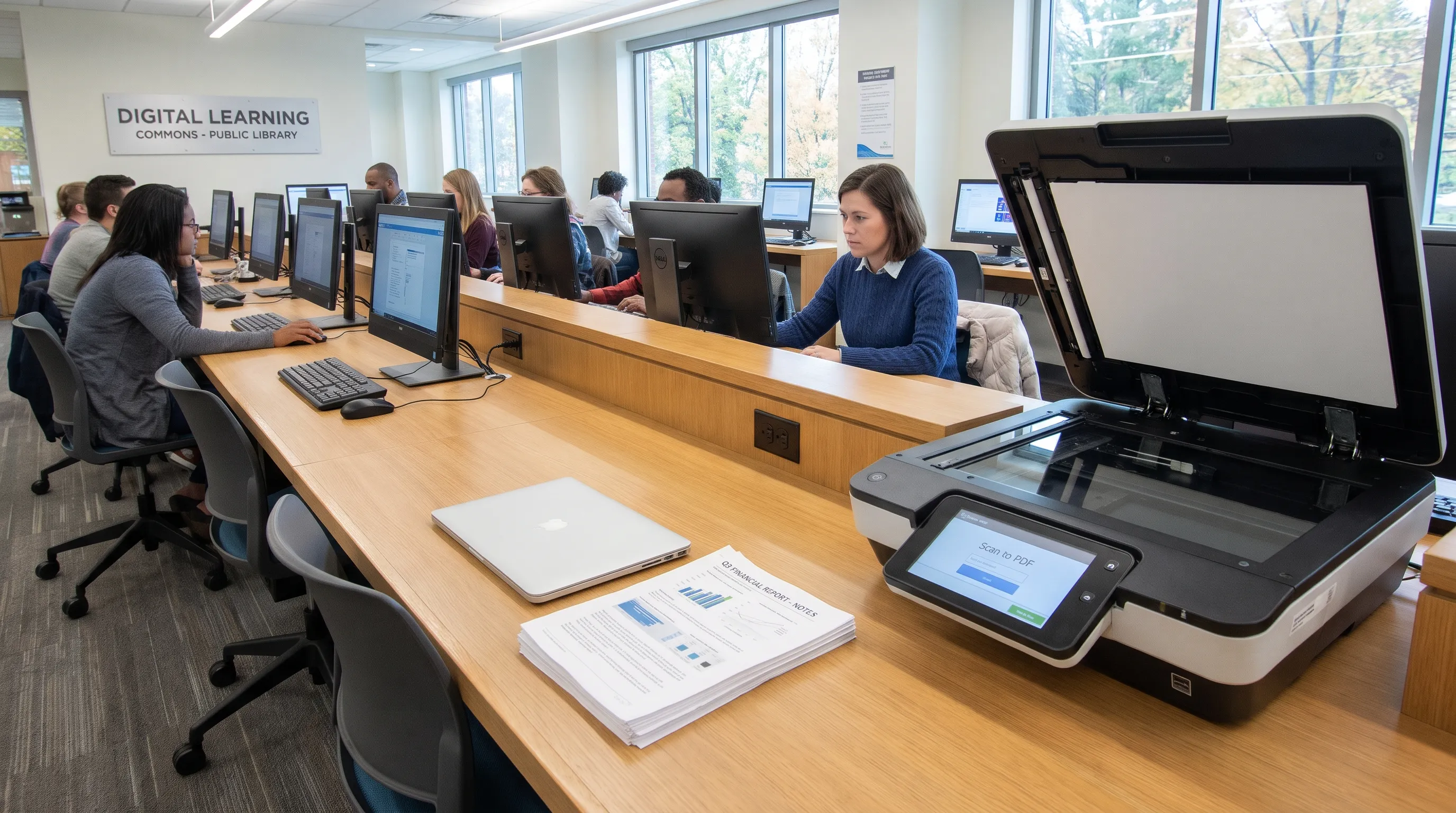
To scan text to Word for editable financial notes, you need optical character recognition (OCR), not just a photo inserted into a document. OCR recognizes characters on a scanned page so you can copy, edit and organize them in Word.
For financial records, recognition is only the first step. A missing minus sign or misplaced decimal can change what a note means. The workflow below covers device-specific methods, formatting and checks that keep your notes connected to the original evidence.
Choose the right output before scanning
An image, a searchable PDF and an editable Word document are different outputs. Inserting a scanned page into Word does not make its text editable. You need a recognition step before you can revise individual words or amounts.
Choose your route based on what you actually need:
| Your goal | Suitable route | Main limitation |
|---|---|---|
| Copy a short printed note | Screenshot or camera text recognition, then paste into Word | Formatting usually needs cleanup |
| Edit a PDF with selectable text | Open a copy in desktop Word | Layout can shift during conversion |
| Convert several scanned pages | OCR software with DOCX export | Tables and reading order need review |
| Analyze bank transactions | Structured extraction to Excel or CSV | Word is better for commentary than calculations |
Keep the original file unchanged. Your Word document should be a working interpretation, not the only remaining copy of the record.
How to scan text to Word on Windows
Windows offers a quick route for short excerpts and a separate route for PDFs. These methods do not behave the same way, especially when the source contains only page images.
Use Windows 11 Snipping Tool for short passages
On supported, updated versions of Windows 11, Snipping Tool includes Text actions, which recognizes text in a screenshot. This works well for a receipt description, a printed annotation or a few lines from a scanned statement.
- Open the scan at a readable zoom level.
- Capture the relevant area with Snipping Tool.
- Select Text actions, then copy the recognized text.
- Paste it into Word and compare it against the source.
Microsoft documents this feature in its Snipping Tool instructions. If Text actions is missing, check your app version and device support.
When you scan text to Word this way, treat the result as plain text rather than a reconstructed financial table. Avoid capturing two columns together if their reading order could become mixed.
Open a PDF in desktop Word when appropriate
Desktop Word can convert PDFs into editable documents, with the best results generally coming from files that already contain recognizable text and straightforward layouts.
- Save a copy of the PDF, then open that copy through Word’s File > Open command.
- Accept the PDF conversion prompt.
- Check whether you can select and edit individual words.
- Save the converted document as a
.docxfile.
Do not assume Word will reliably OCR every scanned PDF. An image-heavy page may remain an image or convert poorly. If individual words are not editable, use a dedicated OCR tool first, then export to DOCX or paste the recognized text into Word.
These instructions concern desktop Word. Word for the web and mobile apps can have different conversion capabilities.
Use a phone or Mac to capture editable text
For occasional notes, built-in text recognition can be more convenient than a full document-conversion service. Menu names and availability vary by operating system, hardware and app version.
iPhone and iPad: use text recognition, not just document scanning
On supported devices, Live Text lets you select printed text in a photo and copy it. Open a clear image in Photos, select the recognized passage, copy it and paste it into Word.
Notes also offers a Scan Text option on supported devices. Do not confuse that with Scan Documents, which captures document pages rather than automatically turning them into editable prose.
If you scan text to Word from a phone, capture one logical block at a time. A transaction description and its neighboring amount can otherwise become separated during copying.
Mac: copy recognized text from an image
On supported macOS versions and hardware, Live Text can recognize text in images in apps such as Preview or Photos. Open the image, select the recognized text and copy it into Word.
If text selection is unavailable, confirm that your Mac and software support the feature. For several pages or complicated layouts, use an OCR application that explicitly supports document export instead of manually copying every block.
Android: check the OCR app and its privacy behavior
Google Lens, including access through supported Google Photos interfaces, can recognize text in images and let you copy selected passages. Paste the result into Word and inspect the line order.
Do not assume this route works entirely offline. Processing and upload behavior depend on the app and feature you use. For confidential records, choose an approved tool whose handling of images you understand.
Prepare the page before recognition
A flat, well-lit page is easier to recognize than a skewed photograph with shadows across the numbers. For printed documents, a 300 dpi scan is a useful starting point. With a phone, hold the camera parallel to the page and check small characters before proceeding.
Keep dates, currency symbols and page references inside the capture area. Crop away irrelevant surroundings, but not headings needed to explain a value. Our guide to scanning bank statements clearly covers capture preparation in more detail.
Before you scan text to Word, rotate sideways pages and check that faint pencil marks remain visible. Increasing contrast too aggressively can erase those marks or turn decimal points into noise.
Build financial notes that retain their source
Once the text is editable, organize it for review rather than trying to reproduce every visual detail of the original. Word is useful for explanations, questions and supporting references.
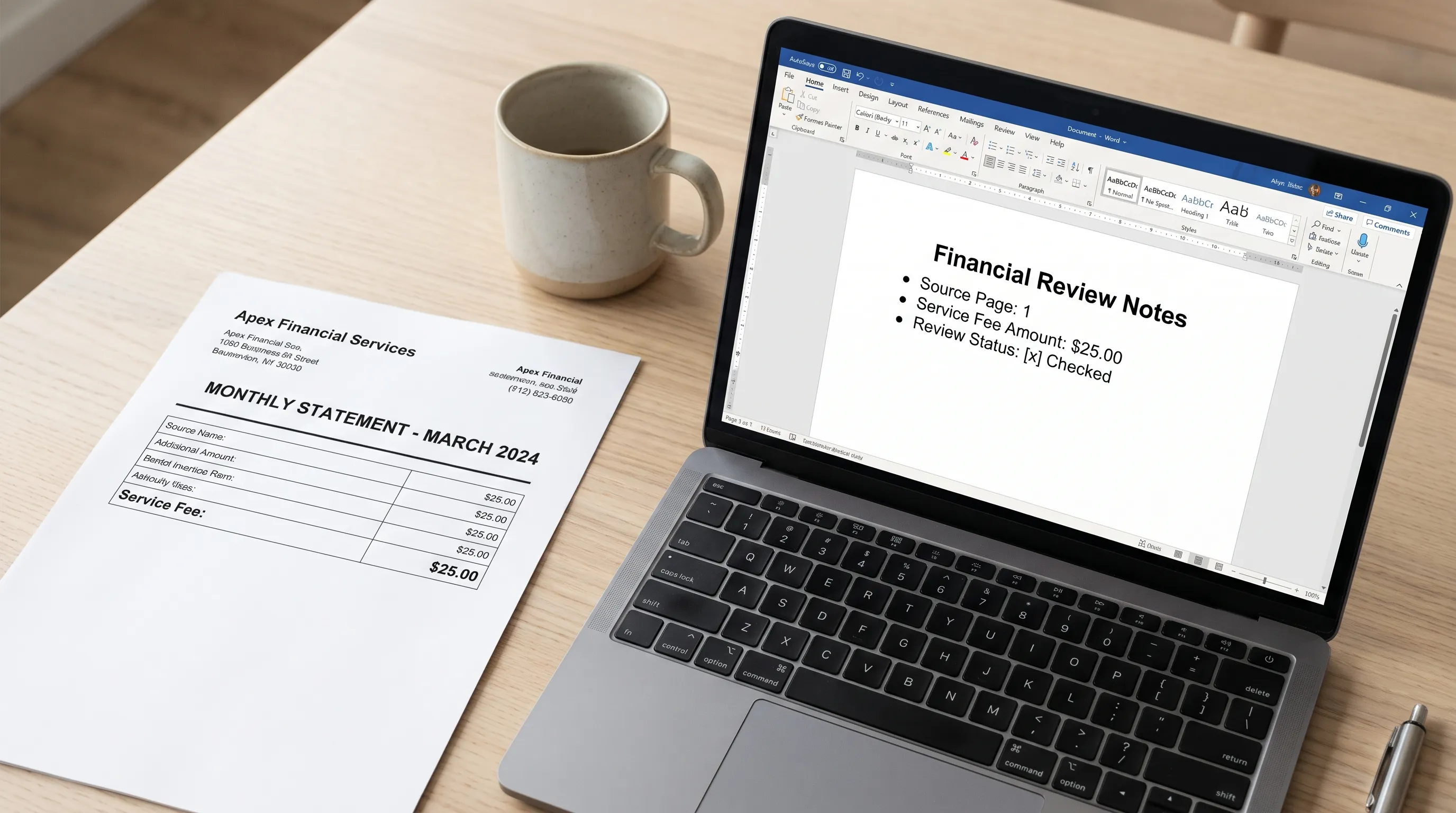
Use a simple structure like this:
| Field | Example entry |
|---|---|
| Source | Statement dated September 30, page 2 |
| Original wording | “Monthly service charge” |
| Amount shown | $12.50 |
| Review note | Confirm whether the fee was expected |
| Status | Checked against the original page |
The entries above are illustrative, not extracted records.
Keep source wording separate from your interpretation. If an abbreviation is unclear, preserve it and add an explanation beside it rather than silently replacing it.
For a small table, create a fresh Word table and place verified values into the correct cells. Spaces and tabs may look aligned on your screen but shift when someone changes fonts or margins. If the table contains many transactions, a spreadsheet is usually the better working format.
Check amounts and meaning before polishing the layout
OCR can produce convincing text that is still financially wrong. Review the source and Word document side by side, paying particular attention to numbers and their labels.
Common problems include a zero recognized as the letter O, a missing decimal point and a minus sign omitted before an amount. Parentheses can also disappear, turning a negative figure into an apparently positive one. Date formats need attention too: 03/04 may be ambiguous without the source’s locale or reporting context.
When you scan text to Word, check the relationship between values, not just the characters. An accurately recognized amount attached to the wrong description is still an error.
For each quoted amount, confirm the currency, date and surrounding label. Where the source provides totals, compare them with the relevant figures. Word’s spelling checker cannot establish that a financial figure is correct.
If you correct an OCR error, record what changed. For example, a note might say: “OCR showed 125.00; source checked and corrected to 1,250.00.” Do not make an uncertain value look confirmed merely by formatting it neatly.
Handle handwriting and recorded notes separately
Handwriting recognition is less predictable than recognition of clear print, particularly for cramped annotations, crossed-out amounts and initials. Test a short sample before processing an entire notebook. If an amount remains unclear, mark it as unresolved and ask the author rather than guessing.
Recorded review meetings require transcription, not OCR. If your supporting notes originate in audio or video, this overview of transcript-based editing in Descript explains how media can be edited through its transcript. That is a different workflow from recognizing a scanned page.
Transcribed financial details still need checking. Spoken account references, decimal amounts and names can be misheard, so retain a timestamp for anything you may need to revisit.
Decide what can leave your device
Before you scan text to Word using an online converter, determine whether you are authorized to upload the document. Statements and receipts may contain addresses, account identifiers or information about other people.
A local workflow can reduce upload exposure. Windows Snipping Tool’s text recognition processes the image on the device, but clipboard synchronization, cloud-backed folders and document sharing are separate considerations. An offline OCR step does not guarantee that the resulting Word document stays offline.
For a web-based service, review its retention period, deletion controls, processing locations and terms governing reuse of uploaded data. Avoid sending a complete statement when an authorized, securely redacted excerpt would meet the need.
Protect the editable output as carefully as the scan. Copied text may be easier to search, share and accidentally include in another document than the original image.
Frequently asked questions
Can I OCR directly in Word? Word can convert PDFs into editable documents, but results depend on the PDF. A scanned page may remain an image. Use a dedicated OCR step if Word does not produce selectable, editable text.
Does Windows 11 have built-in OCR? Supported versions of Snipping Tool include Text actions for recognizing text in screenshots. Availability depends on your installed version and device. This is useful for excerpts, not necessarily for reconstructing a multipage document.
Can I scan directly into a Word document? You can scan text to Word through scanner software that supports OCR and DOCX export. Otherwise, scan to an image or PDF, recognize the text in a separate tool and paste or export it into Word.
Will OCR preserve columns and tables? Sometimes, but not reliably across every layout. Inspect reading order, merged cells and the placement of amounts. For financial calculations, use structured spreadsheet data rather than a visually similar Word table.
Can handwritten financial notes become editable text? Some tools support handwriting recognition, but accuracy varies with legibility and layout. Treat the result as a draft and verify every amount against the original.
Use Word for notes and verified exports for transactions
An editable Word document is useful for documenting questions, explaining adjustments and summarizing a review. It is not a substitute for checking the underlying transactions.
If your task involves extracting a statement’s figures, Extract Bank Statements converts bank statement PDFs, scans and photos into CSV, Excel, OFX or JSON, with verification against the statement’s running balances and totals. It is a structured-data workflow, not a Word converter.
For transaction-heavy work, follow an OCR-to-Excel review workflow, then use Word for the commentary and source references that explain your findings.