How to Scan Bank Statements With Clear, Accurate Results
Thomas Gak-Deluen8 min read
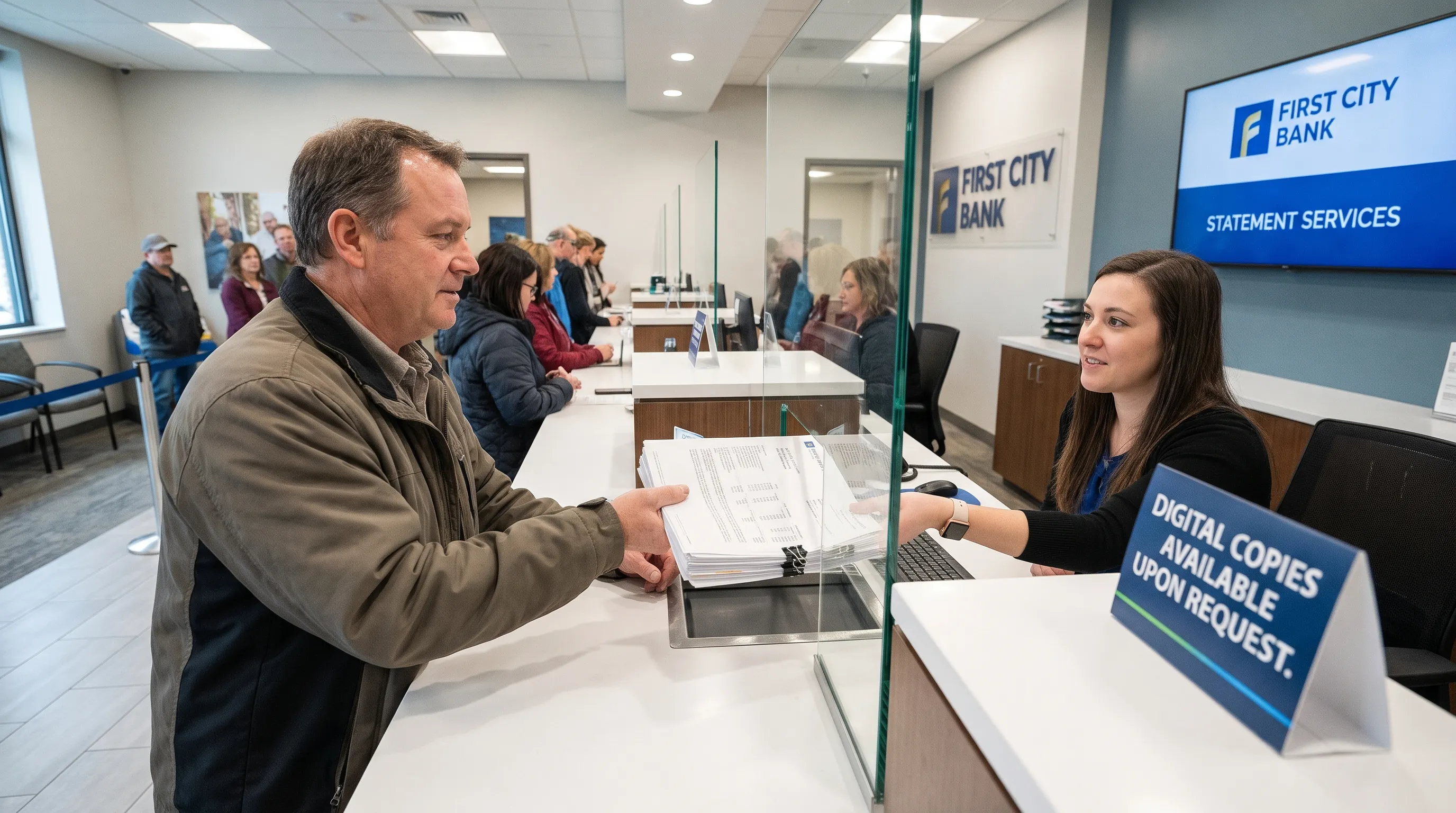
To scan bank statements with clear, accurate results, you need more than a readable photograph. Every page must be complete, small figures must stay sharp and the extracted transactions must agree with the statement’s balances. A clean-looking PDF can still contain a cropped debit, a misread decimal or a missing page.
The workflow below covers paper preparation, scanner settings, phone capture and the checks to make before using the data in a spreadsheet or accounting system. The aim is a dependable financial record, not just a smaller paper pile.
Choose the best available original
Before reaching for a scanner, check whether your bank offers a downloadable statement PDF through its website or app. An original bank PDF usually avoids the blur, shadows and page distortion introduced by printing and rescanning. Keep that original file unchanged.
Downloading a statement is also different from taking screenshots of your transaction history. Screenshots may omit the account details, statement period, opening balance or declared totals needed to check completeness.
If you must scan bank statements from paper, start with the original printout rather than a photocopy where possible. Copying can weaken decimal points and make similar characters harder to distinguish. For a statement needed by a lender, auditor or other recipient, check their document requirements first: a readable scan is not automatically an accepted substitute for a bank-issued PDF.
Prepare the pages before capturing them
Put the statement in page order and confirm that the account and statement period remain consistent throughout. Look for page numbering such as “Page 2 of 5,” then check that all five pages are present. Include reverse sides that contain transactions, balances or explanatory notes relevant to the figures.
Remove staples and unfold corners carefully. Flatten creases without damaging the paper. Sticky notes, paper clips and folded edges can hide information or interfere with a document feeder.
Keep separate accounts and statement periods in separate files unless your next workflow specifically requires a combined document. A descriptive filename such as Checking_4821_2026-09.pdf makes later reconciliation easier without exposing the full account number in a folder listing.
Settings to scan bank statements clearly
Use these as practical starting settings, then inspect the smallest text before scanning a large batch. Higher resolution cannot recover detail that is already missing from a faint original.
| Setting | Starting point | What to check |
|---|---|---|
| Resolution | 300 dpi | Decimal points, dates and small balance figures remain distinct |
| Small or faint print | Try 400 dpi | The extra detail actually improves readability |
| Color mode | Grayscale for ordinary black text | Light text and shaded table cells remain visible |
| Color documents | Color when distinctions matter | Colored text or annotations do not disappear |
| Page size | Match the paper size | Headers, footers and outer columns are not cropped |
| Output | Multipage PDF | Pages stay together in the correct order |
Avoid aggressive black-and-white thresholding if it removes light characters. Excessive sharpening can also distort tiny punctuation, while heavy compression can introduce artifacts around numbers.
For a document feeder, test a few pages before committing the whole stack. Confirm that double-sided capture is enabled when needed and check that two sheets have not fed together. A flatbed is a better choice for fragile, creased or unusually sized pages.
Capture a flat, complete image on your phone
When you scan bank statements with a phone, camera position and lighting matter more than decorative image filters. Use a document-scanning mode if available, but inspect its automatic crop rather than accepting it without review.
- Place the page on a flat, contrasting surface: Keep all four corners visible and remove nearby clutter that could confuse edge detection.
- Light the page evenly: Use diffuse light and move away from glare. Avoid casting your own shadow across the transaction columns.
- Hold the camera parallel to the paper: Position the lens above the center of the page so the top and bottom edges appear similar in width.
- Focus on the smallest figures: Tap to focus if your app supports it, steady the phone and inspect the result before moving on.
- Review the crop and save: Leave a small margin around the page, confirm that nothing is cut off and add the next page in order.
Capture one full page per image. Photographing an open two-page spread often makes text too small and introduces distortion near the fold.
Save the original scan rather than a screenshot of it. Avoid sending it through a messaging service that reduces image quality before you process it.
Check the whole PDF before uploading it
Before you scan bank statements from another month, inspect the first completed file. Finding a recurring crop or lighting problem now saves repeating the entire batch later.
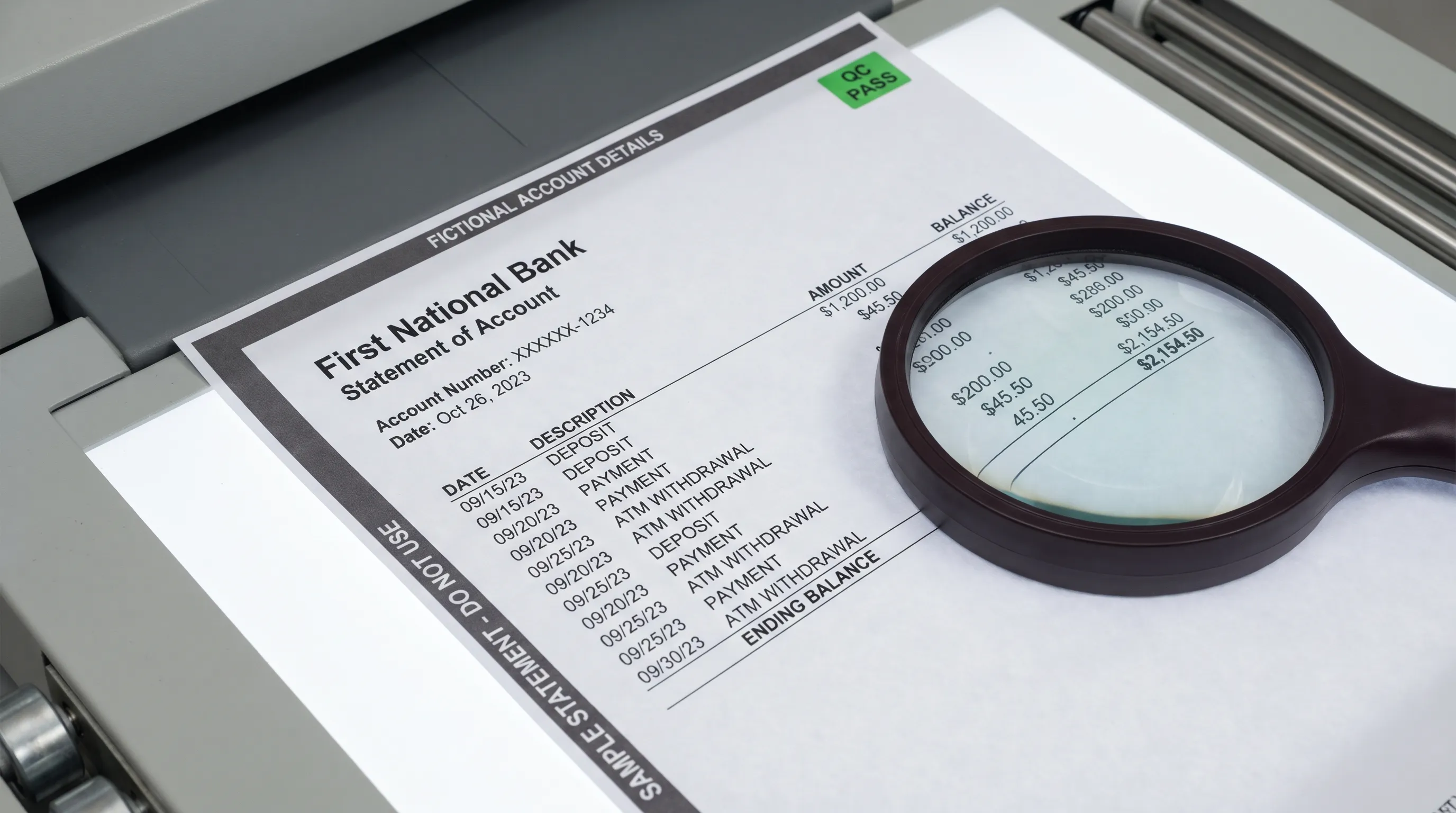
Check every page at two scales. At full-page view, look for missing pages, incorrect rotation, shadows and clipped edges. At higher magnification, inspect decimal points, minus signs, dates and the rightmost balance column.
Compare the first and last visible transaction on each scanned page with the paper original. Pay particular attention to page bottoms, where a final row can fall outside an automatic crop. A page-count check alone will not catch that problem.
Retake pages that are blurred or incomplete instead of relying on software to reconstruct missing information. For a deeper look at wrapped descriptions and transaction boundaries, see our guide to preserving table rows during scanning and OCR.
Verify the numbers, not just the image
After you scan bank statements, verify the extracted data against the document rather than treating successful OCR as proof of accuracy. Optical character recognition reads characters; financial checks test whether the resulting amounts fit together.
For a typical deposit account, the basic relationship is:
Closing balance = opening balance + credits − debits.
For example, an opening balance of $1,500.00, a $1,200.00 deposit, a $235.40 payment and a $10.00 fee should produce a closing balance of $2,454.60. Compare declared credit and debit totals too, where the statement supplies them. Credit card statements can use different balance conventions, so follow the labels on the document.
Where running balances appear, check the change after each transaction. A closing balance can still match when two extraction errors offset each other. Dates, descriptions and transaction completeness therefore need review as well. Our guide to reading a bank statement and verifying its transactions explains those checks in more detail.
Supporting documents answer a separate question: what was the payment for? For example, a laboratory reconciling a purchase from PeptideX Research Supplies should match the statement debit to the supplier invoice or receipt. Correct arithmetic alone does not establish the purchase category.
Export to the format your next task needs
People often scan bank statements to avoid retyping transactions, but an image-only PDF is not yet a usable transaction table. Choose the output according to the next task: CSV for supported imports, Excel for spreadsheet review, OFX for compatible financial software or JSON for a custom integration.
Extract Bank Statements supports scans and photos through OCR and converts statements into these formats. It verifies figures against the statement’s running balance and declared totals before export. It also supports personal, business and credit card statements, with REST API access for automated workflows.
Regardless of the tool, inspect the exported file before importing it elsewhere. Confirm that dates use the expected order, amounts are numeric and debit and credit signs match the receiving system’s requirements. Keep currencies distinguishable and ensure spreadsheet software has not removed leading zeros from reference fields.
Test a small import first. Then check the imported transaction count and totals, watching for duplicates if a bank feed already covers the same period.
Protect the original and sensitive details
If you scan bank statements for someone else, confirm that you have authorization to handle their records. Statements can expose account numbers, addresses, income and detailed spending patterns.
Keep an unchanged original and use a separate working copy for rotation, cropping or permitted redaction. Do not change financial figures or remove transactions to make an import balance. Any correction to extracted data should be traceable to the source statement.
Before uploading documents, review the service’s storage location, retention policy, deletion options and access controls. Extract Bank Statements uses EU-based file storage, but storage location alone does not answer every privacy or compliance question.
Check your scanning app’s cloud-sync settings too. Delete unnecessary temporary copies from shared devices and downloads folders according to your retention policy, while preserving records you are required to keep.
Frequently asked questions
What resolution should I use for bank statements? You can scan bank statements at 300 dpi as a practical starting point for ordinary printed text. Try 400 dpi for small or faint characters, then compare the results. Better lighting, focus and page alignment can matter more than increasing resolution.
How do I get scanned transactions into QuickBooks? First extract structured transaction data from the scan. Check the supported import formats and required columns in your QuickBooks version, then prepare the file accordingly. Review the selected bank account, date range and duplicate transactions before completing the import. A scanned PDF alone is not the same as an import-ready transaction file.
Can I edit a scanned statement to improve readability? Rotation, careful cropping and moderate contrast adjustments can improve a working copy. Preserve the original and never alter amounts, dates or transaction details. If information is illegible, obtain a clearer scan or download another statement from the bank rather than guessing.
Turn a clear scan into checked financial data
Start with one complete statement, inspect the smallest figures and verify the balances before processing a larger batch. To move from scanned pages to structured records, try the free first conversions with Extract Bank Statements and check the exported data before putting it to work.