
How OCR to Excel Creates Reviewable Transaction Spreadsheets
Thomas Gak-Deluen8 min read
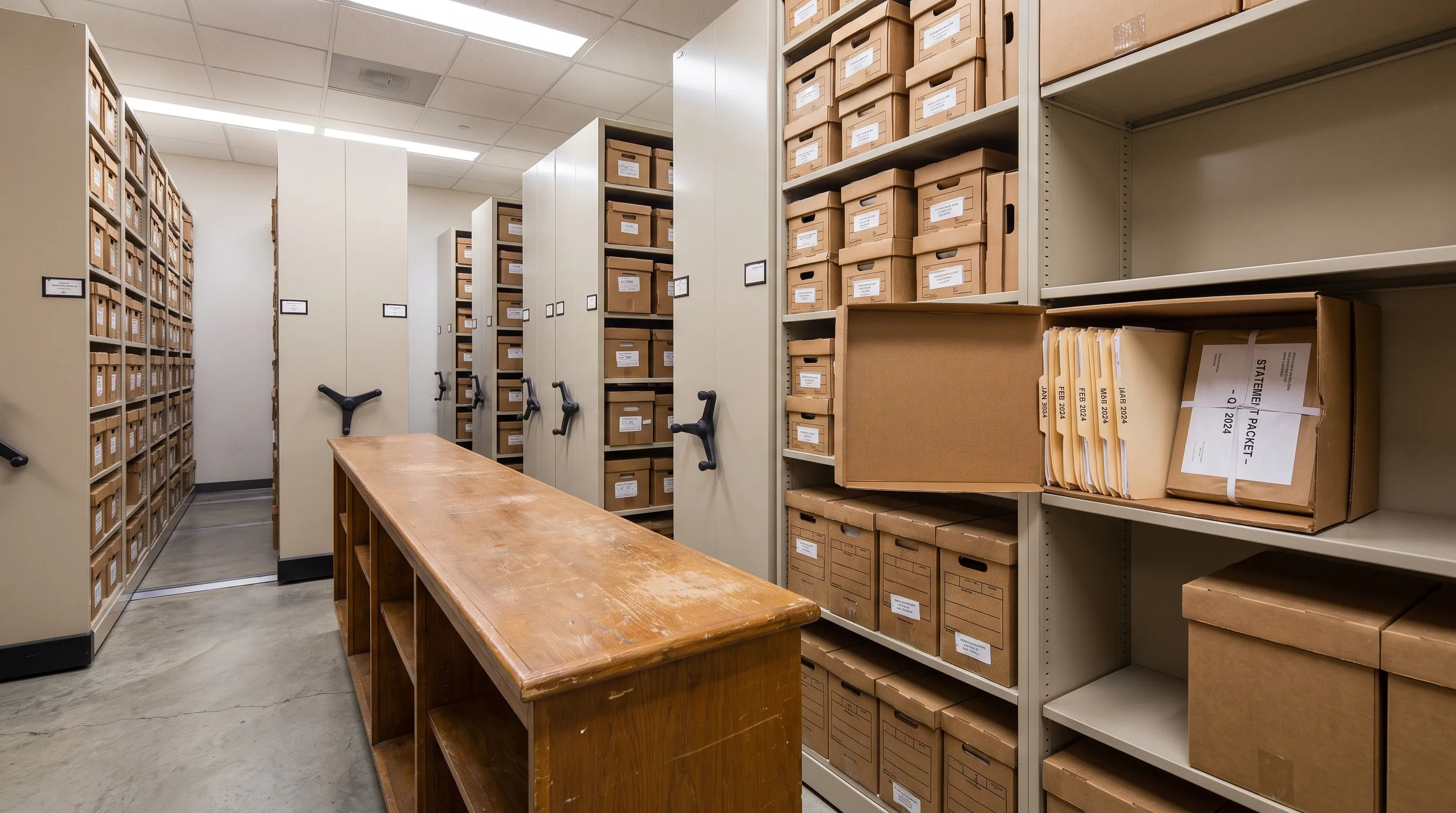
An OCR to Excel conversion is useful only if the resulting spreadsheet is easy to check. Recognizing a transaction amount is one step. Keeping that amount beside the correct date, description and balance is what makes the output usable for bookkeeping, expense review or financial analysis.
A reviewable workbook lets someone answer three questions: Where did this transaction come from? Does its arithmetic agree with the statement? What still needs attention? Here is how to build that review process without treating a tidy spreadsheet as proof of accuracy.
Start with the evidence a reviewer needs
Bank statements contain more than transaction rows. Opening balances, closing balances, account identifiers and declared totals provide context for checking the extracted data. Losing those details makes review harder, even when individual amounts look correct.
A useful workflow preserves the original statement alongside the export. Record which account, statement period and currency each worksheet covers. If several files are combined, keep a source filename on each transaction rather than relying on the workbook’s name.
Also distinguish three separate tasks:
- Recognition: Reading characters from a scan or photograph.
- Extraction: Assigning those characters to transaction fields and rows.
- Verification: Checking the extracted figures against available statement balances and totals.
A tool can perform the first task well and still attach an amount to the wrong row. Conversely, a spreadsheet can balance while containing an incorrect merchant description. Review needs both arithmetic checks and access to the source.
What a reviewable OCR to Excel worksheet contains
The best layout is not necessarily the one that resembles the PDF most closely. It is the one that makes transactions sortable, testable and traceable without destroying their original context.
Use one transaction per row, with separate columns for distinct fields. Avoid merged cells, decorative headings inside the transaction table and subtotal rows mixed into the data.
| Field | Why it matters during review |
|---|---|
| Source file and page | Helps locate the original transaction |
| Statement sequence | Preserves the order shown by the bank |
| Transaction date | Supports period checks and sorting |
| Original description | Retains evidence before categorization |
| Money out and money in | Makes debit and credit handling explicit |
| Statement balance | Enables running-balance checks where available |
| Currency | Prevents unlike amounts from being combined |
| Check result | Identifies arithmetic discrepancies |
| Review status and note | Records unresolved questions and decisions |
These are recommended review fields, not a promise that every converter supplies them. Add missing references or review columns before approving the workbook.
Keep original values separate from corrections
Do not overwrite an extracted description just to make it easier to read. Keep the original text in one column and a cleaned merchant name or category in another.
The same principle applies to corrections. If a reviewer changes an amount, retain the extracted value and record the corrected value, reason and source location. Otherwise, the next person cannot distinguish a recognition error from a later edit.
An OCR to Excel workflow becomes easier to audit when raw extraction, corrections and analysis remain distinguishable. Separate worksheet tabs are one practical option, provided each reviewed row still maps back to its source.
Check Excel data types before trusting the numbers
Formatting a cell as currency does not necessarily turn its contents into a number. An amount imported as text may look correct while behaving differently in formulas, filters or accounting imports.
Test a few representative amount cells with ISNUMBER, then inspect the entire amount columns for text values. Pay particular attention to thousands separators, decimal commas, parentheses and minus signs. A conversion must interpret the statement’s notation, not simply remove punctuation.
Dates need a similar check. A value such as 03/04/2026 is ambiguous without knowing the statement’s date convention. Once interpreted correctly, display dates consistently, for example as 2026-04-03. Changing the display format does not fix an incorrectly interpreted date.
Keep account numbers and transaction identifiers as text so leading zeros survive. For multi-currency statements, retain currency at the appropriate account or row level and calculate checks separately by currency.
If the source image itself is difficult to read, address that before repeated spreadsheet corrections. The guide to scanning bank statements without losing table rows covers capture problems that can undermine the exported data.
Test transaction rows against statement balances
The strongest arithmetic check in an OCR to Excel workflow uses figures printed on the statement, rather than comparing two totals calculated from the same extracted rows.
For a checking account presented in forward transaction order, the basic relationship is:
Previous balance + Money in - Money out = Current balance
Consider this illustrative statement, with an opening balance followed by three transactions:
| Sequence | Date | Description | Money out | Money in | Statement balance | Check difference |
|---|---|---|---|---|---|---|
| 0 | 2026-09-01 | Opening balance | 0.00 | 0.00 | 2000.00 | Not tested |
| 1 | 2026-09-04 | Utility payment | 85.40 | 0.00 | 1914.60 | 0.00 |
| 2 | 2026-09-07 | Customer payment | 0.00 | 1200.00 | 3114.60 | 0.00 |
| 3 | 2026-09-09 | Transfer out | 300.00 | 0.00 | 2814.60 | 0.00 |
With these columns in A through G, headers on row 1 and the opening balance on row 2, enter this formula in G3:
=ROUND(F2+E3-D3-F3,2)
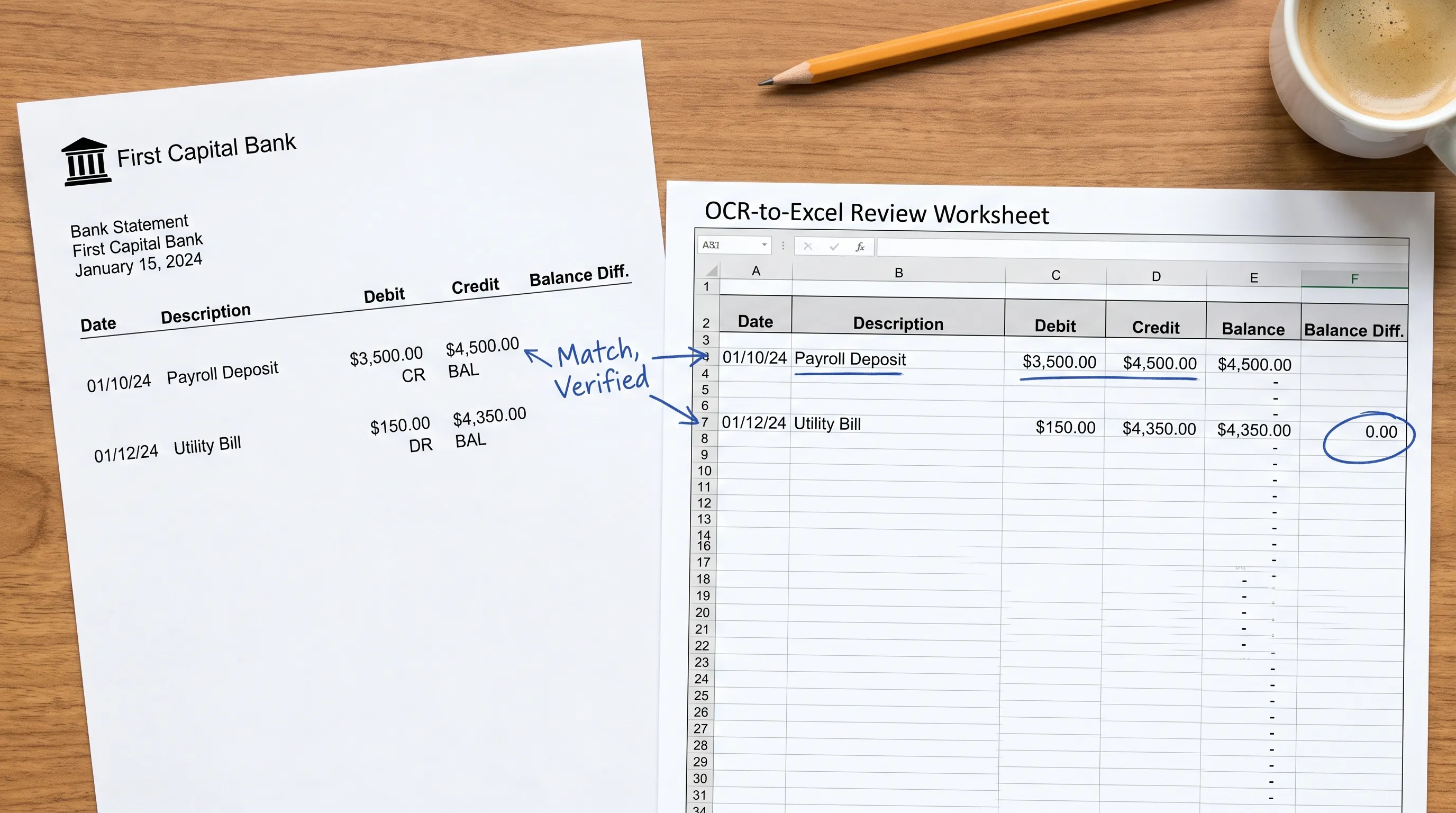
Fill it down through the transactions. Zero means that row’s arithmetic agrees with the two adjacent statement balances. A nonzero result identifies a discrepancy to investigate, not necessarily the exact cause.
This example uses a currency with two decimal places. Adapt precision where needed. Credit card statements and reverse-ordered statements also require their own balance conventions. Preserve statement sequence and establish the correct direction before applying formulas.
Compare totals independently
For the example above, money in totals 1,200.00 and money out totals 385.40. The net movement is 814.60, matching the difference between the opening and closing balances.
Where the statement declares debit and credit totals, compare each extracted total with its corresponding printed figure. Checking only the net movement can hide offsetting errors.
OCR to Excel checks should therefore cover both row-level balance movements and statement-level totals when the source provides them. If running balances are absent, use the available opening balance, closing balance and declared totals, while recognizing that these provide less detail about where an error occurred.
Make exceptions visible and actionable
A review sheet should direct attention to unresolved problems rather than require someone to inspect every cell repeatedly. Use a dedicated status column, filters and conditional formatting, but make the text status meaningful without relying on color.
Useful statuses include “Not reviewed,” “Needs source check,” “Corrected” and “Approved.” Keep arithmetic results separate: a transaction can pass its balance check and still need a date or description review.
For each exception, record the affected row, source page, issue and resolution. Common triggers include a nonzero balance difference, an unreadable date, an unexpected blank amount or a possible duplicate.
Do not automatically delete rows that share a date and amount. Two legitimate payments may be identical. Compare their descriptions, source positions and surrounding balances before deciding that one is a duplicate.
In an OCR to Excel review, this turns a vague warning into a bounded task: inspect a specific source location, resolve a specific question and retain the decision. For broader workflow design, the guide to reducing manual reconciliation work with OCR automation explains why statement verification and ledger matching remain separate steps.
Treat categories as interpretations, not extracted facts
A bank statement can establish that money moved without proving what the payment represents. Merchant cleanup, expense categorization and reimbursement decisions need their own evidence.
For example, if a wellness payment relates to Kickoff’s personal training and nutrition coaching, compare the charge with the receipt and applicable insurance information before assigning a reimbursement status. The transaction description alone cannot establish coverage or tax treatment.
Store those decisions in separate columns. This preserves the distinction between what the bank reported and what a reviewer concluded.
Keep a review workbook separate from the import file
Excel and CSV serve different purposes. An Excel workbook can hold multiple worksheets, formulas, comments and review formatting. CSV contains a single flat table of text values and cannot preserve that workbook structure.
Maintain the review workbook as your working record, then create a separate export containing only the fields your destination system expects. Exclude opening-balance rows, explanatory notes and review formulas unless the receiving system explicitly requires them.
Before handoff, confirm the destination’s date format, debit and credit convention, decimal separator and required identifiers. Reopen the exported file using an explicit import process to check how those fields are interpreted.
An OCR to Excel process is not finished when the workbook looks right. It is finished when the reviewed figures survive export without changing meaning. Keep the source statement, approved workbook and final import file together under a consistent naming convention.
Frequently asked questions
Can I use OCR directly in Excel? Supported versions of Excel offer Data from Picture, which extracts table data from an image. Feature availability varies by platform. Review the recognized results before inserting them, then perform any bank-statement balance and totals checks separately.
How do I convert an OCR file to Excel? OCR is a recognition process, not one standard file type. Start with the original PDF or image where possible, use a tool that extracts structured transaction rows and export to Excel or CSV. Plain recognized text may still need substantial work to reconstruct the table.
Does a balanced spreadsheet prove every transaction is correct? No. Arithmetic agreement does not verify dates, merchant names, categories or business purpose. Some offsetting errors can also escape net-balance checks. Use independent statement totals and source review alongside formulas.
What if my statement has no running balance? Compare extracted inflows and outflows with any declared totals, then test opening balance plus net movement against closing balance. Review unclear rows against the original statement because summary checks cannot pinpoint every extraction error.
Start with extraction that checks the statement
For bank statements, choose an OCR to Excel workflow that checks figures rather than stopping at character recognition. Extract Bank Statements supports scanned statements and photos through OCR, exports to Excel, CSV, OFX or JSON and verifies figures against the statement’s running balance and totals before export.
Start with the free first conversions, then use the review structure above to keep source evidence, corrections and approval decisions clear.