
How to Scan and OCR Bank Statements Without Losing Table Rows
Thomas Gak-Deluen9 min read
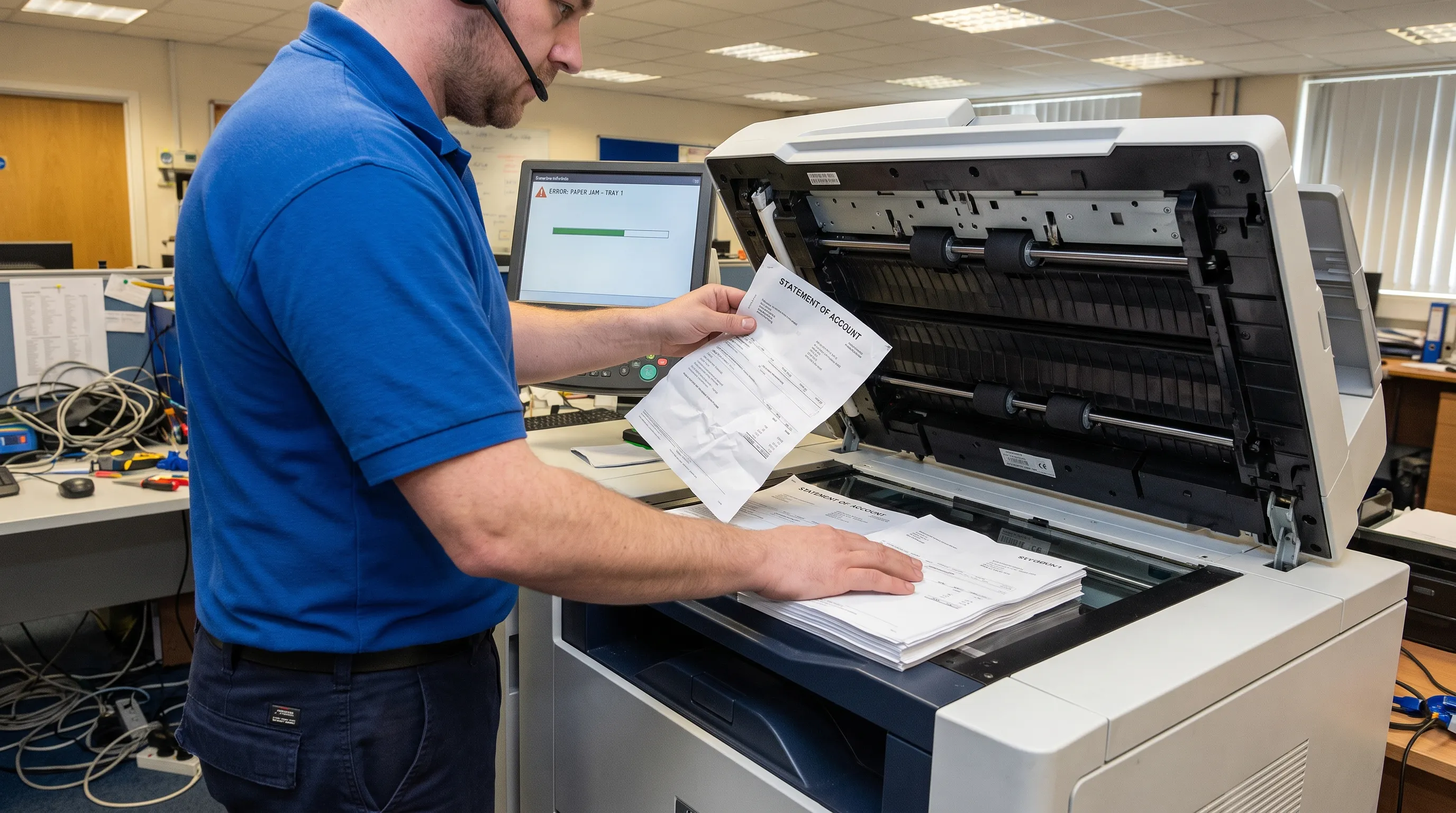
For bank statements, a scan and ocr workflow succeeds only when every transaction survives the trip from paper to spreadsheet. A readable image is not enough: a missing row, merged description or repeated page can change the numbers you use for bookkeeping.
The safest approach is to capture complete pages, preserve transaction boundaries and check the extracted table against the statement’s balances and totals before importing it.
Check whether scanning is necessary
First, try selecting text in the original PDF. If you can, use that file rather than printing and rescanning it. Selection is only a clue: the text layer may still have poor table structure.
If the statement is image-only, OCR is needed. Keep the original unchanged and work on a copy.
Build your scan and ocr workflow around complete pages
Choose settings that preserve small text
Start with 300 dpi for ordinary printed statements. Tesseract’s image-quality guidance recommends at least 300 dpi for its recognition engine. This is a useful starting point, not a guarantee for every document or extraction tool.
For unusually small type, test a higher-resolution scan and inspect the result. Changing a file’s resolution label does not restore detail that was never captured.
Use grayscale when it preserves faint printing better than black-and-white mode. Avoid aggressive contrast adjustments that erase decimal points, minus signs or thin characters.
In a scan and ocr workflow, inspect the smallest amount and the faintest transaction line before scanning the entire batch. If those are unclear, adjust the capture settings first.
Keep the page flat and fully visible
With a flatbed scanner, flatten folds and align the sheet so transaction lines remain horizontal. With a document feeder, remove staples and check for double feeds. A clean-looking PDF can still be missing a physical page.
For phone photos, keep the camera parallel to the page, use even lighting and include all four corners. Avoid glare over the amount columns and shadows near the binding. Photograph each page separately rather than capturing a two-page spread with curved text.
Straighten a working copy if necessary, but retain the original capture. Crop away the desk or scanner background, not statement content. Account identifiers, page numbers, column headings and totals help establish where each table belongs.
Inventory every page before extraction
Record the statement period, expected page count and opening and closing balances. Check printed page numbering against the actual file. A statement labeled “Page 2 of 4” needs investigation if the PDF contains only three pages.
A scan and ocr process should preserve page order before it tries to reconstruct transaction order. Renaming files with zero-padded page numbers, such as page-01 and page-02, can help when assembling separate scans.
Pay particular attention to the bottom of one page and the top of the next. A transaction may begin on one page and continue on another, or a repeated heading may appear immediately before the next transaction.
For each transaction-bearing page, note its first and last visible transactions. This small control makes it easier to spot a lost boundary row later. Do not discard a page simply because it appears to contain only summary information; it may hold the totals needed for verification.
Reconstruct transactions, not just lines of text
OCR recognizes characters. Preserving table rows also requires identifying which characters belong to the same transaction. A merchant name that wraps onto another line should normally remain inside one description field, not become a second transaction.
Similarly, a blank date cell does not necessarily indicate an empty row. Some statements print a date once and leave subsequent same-day transactions undated. Use the statement’s layout and surrounding entries to interpret those rows.
The table stage of a scan and ocr workflow should distinguish transaction data from headings, subtotals and continuation text. Check these common failure points:
| Statement feature | Possible extraction error | What to check |
|---|---|---|
| Description wraps onto another line | One transaction becomes two rows | Whether the extra line has its own amount or belongs to the preceding entry |
| Several transactions share a date | Undated rows disappear | Whether every visible amount has a corresponding exported transaction |
| Table continues on another page | First or last transaction is lost | The final entry before the break and the first entry after it |
| Column headings repeat | A heading becomes a transaction | Whether the row contains labels rather than transaction values |
| A balance is carried forward | The balance becomes a debit or credit | Whether it represents a transfer between pages rather than account activity |
Do not require every row to have a running balance. Some statements provide balances only periodically, and others show only opening and closing balances.
Preserve legitimate repeated transactions
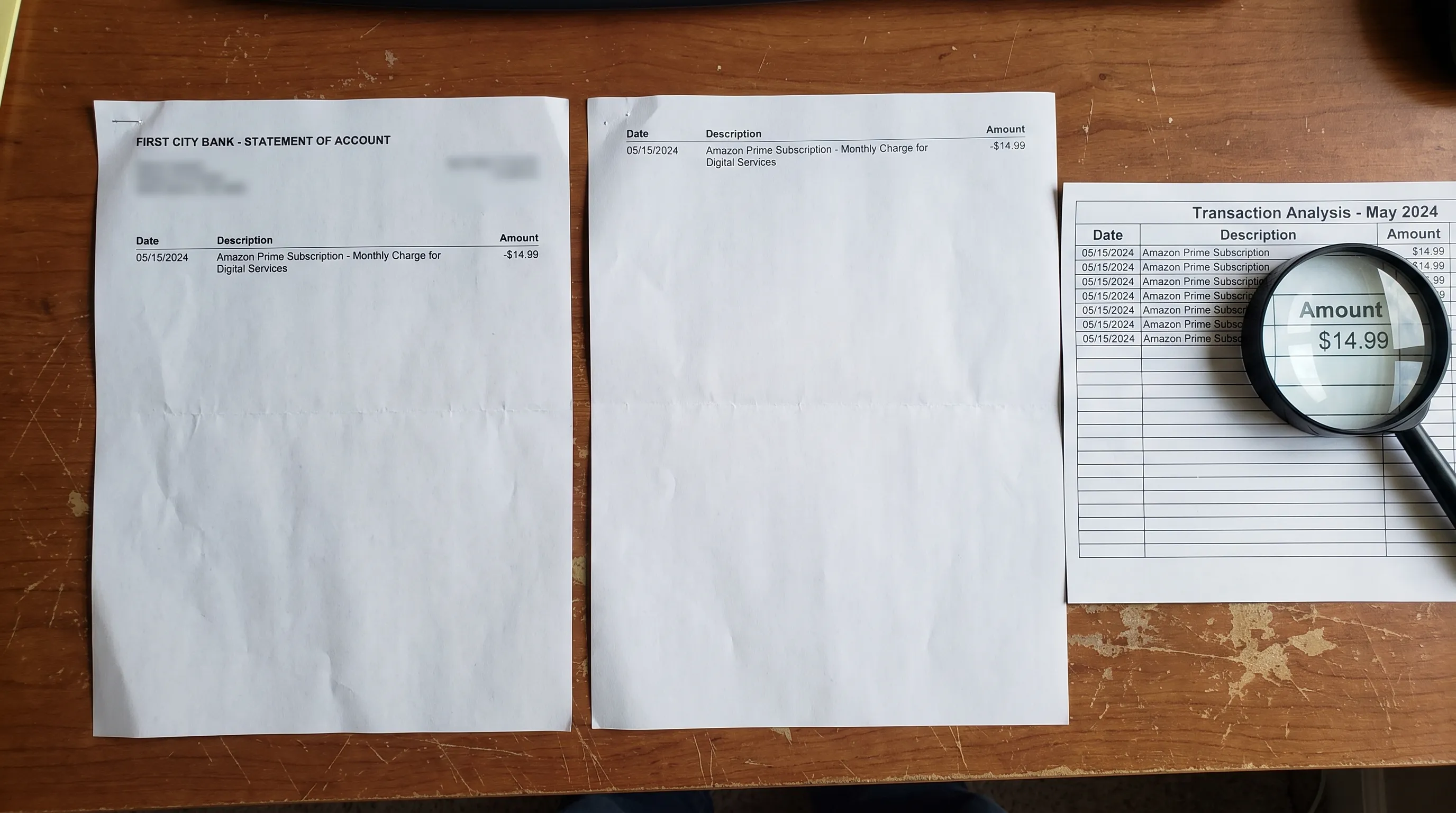
Two transactions can have the same date, description and amount. They may represent separate purchases or recurring charges, not duplicate extraction.
Before deleting an apparent duplicate, locate both entries in the original statement. Confirm that two exported rows came from the same source entry, rather than two genuine entries that happen to look alike.
This matters especially when scan and ocr processing combines overlapping photos or repeated scans. A duplicated source page is a capture problem; two identical-looking transactions on one source page are a different question.
If you record page numbers and row positions during review, you can distinguish these cases without guessing. Also preserve the bank’s printed transaction sequence. Sorting by date too early can obscure whether the extraction crossed a page boundary correctly.
Use balance arithmetic to find missing rows
For a conventional deposit account, the basic statement-level check is:
Opening balance + total credits - total debits = closing balance
Where the statement provides a running ledger balance after each transaction, check the same relationship row by row. The previous balance, adjusted by the current transaction, should equal the next printed balance.
For example, suppose an illustrative statement starts at $1,000.00, records a $25.00 debit, a $300.00 credit and a $40.00 debit, then closes at $1,235.00. If extraction drops the final debit, the calculated closing balance becomes $1,275.00. The $40.00 difference gives you a specific discrepancy to investigate.
Balance verification makes scan and ocr errors easier to locate, but the arithmetic must match the statement’s conventions. Credit card statements can express purchases, payments, fees and credits differently. Available balances may also include effects that are not part of the posted transaction ledger.
Use the statement’s own labels and reconciliation structure rather than imposing a deposit-account formula on every document. For a broader explanation of these checks, see how to read a bank statement and verify its transactions.
A matching closing balance is not enough
Two missing transactions can offset each other. Losing a debit and a credit of the same amount leaves the net movement unchanged, even though the table is incomplete.
Compare total debits and total credits separately wherever the statement declares them. Compare transaction counts too, if the bank provides counts with a clear definition. A summary count may cover only a particular transaction category, so confirm what it includes.
A sound scan and ocr review combines arithmetic with source inspection. Check every transaction-bearing page, inspect page boundaries and compare visible entries with the exported rows. When a discrepancy appears, review the relevant amounts and surrounding rows rather than changing values merely to make the closing balance match.
If blurred characters prevent a reliable comparison, return to the source image. This guide to handling blurry statement scans explains the image-quality issues that may require a better capture.
Check that export has not hidden or changed rows
An extraction can be complete while the spreadsheet appears incomplete. Active filters, hidden rows or an incorrect import range can conceal transactions that are still present in the file.
Open the export in a clean worksheet and compare its transaction count with the reviewed extraction. Exclude the header from the count and check whether blank separator rows have been included. Keep the original order until verification is complete.
The final scan and ocr check should also cover field types. Confirm that dates have been interpreted in the correct order, debit and credit amounts remain numeric and parentheses or minus signs retain their intended meaning. An amount imported as text may be omitted from a spreadsheet sum.
For CSV, use the spreadsheet application’s import controls when necessary. Confirm the delimiter, date convention and decimal separator. Descriptions containing commas should remain in one field rather than shifting amounts into another column.
For Excel, inspect the underlying value as well as its display format. A cell that looks like a date may still contain text. Preserve account identifiers as text when leading zeros matter, and keep currencies separate when reconciling multiple statements.
Keep evidence that another person can review
Retain the source statement, the unmodified export and the reviewed working file. Record the statement period, page count, checks performed and any corrections. If you repair an amount or join a split description, note the source page and the reason.
That record makes scan and ocr corrections traceable. A reviewer should be able to determine whether a row came from the statement, was duplicated during capture or was altered during cleanup.
For church treasurers and faith-based nonprofits, Kingdom Signals’ reflections on faith and stewardship offer context for the responsibility behind this work. The practical recordkeeping standard remains concrete: preserve the source, account for every transaction and document unresolved differences.
Protect the files throughout the process. Limit access to people who need the financial information and review an extraction provider’s storage and retention arrangements before uploading sensitive statements. A corrected spreadsheet is useful, but it should never replace the source evidence.
Frequently asked questions
Is 300 dpi enough for bank statement scanning? It is a reasonable starting point for ordinary printed statements. Small type, faint printing or damaged originals may need a higher-resolution capture. Inspect representative dates, amounts and punctuation before processing every page.
Why does OCR skip rows that look readable? Character recognition and table reconstruction are separate tasks. A readable transaction can disappear if it is mistaken for a footer, merged with a neighboring row or separated from its amount at a page break.
Can a matching closing balance prove that every row was captured? No. Missing debits and credits can offset each other. Check separate totals, transaction counts where available and the entries on each page as well as the closing balance.
Should I delete transactions with identical dates and amounts? Only after checking the source. Matching values can represent legitimate separate transactions. Remove a row when you have evidence that the same source entry was extracted twice.
Convert the statement, then verify the result
Use Extract Bank Statements to convert bank statement PDFs, including scans and photos, into CSV, Excel, OFX or JSON. It verifies figures against the statement’s running balance and declared totals before export, and free first conversions are available.
Treat scan and ocr as a controlled sequence: capture complete pages, preserve transaction rows, reconcile the figures and inspect the exported file before using it for bookkeeping.