
How to Import Data From PDF to Excel Without Column Errors
Thomas Gak-Deluen9 min read

When you import data from PDF to Excel, a spreadsheet that looks right can still contain the wrong numbers. A wrapped description may push an amount into the next row, a date may switch month and day or a debit may become text that Excel silently excludes from a total.
The safest approach is to extract the table, establish its column types and verify the result before using it. This guide walks through that workflow in Excel, with specific fixes for financial documents such as bank statements and invoices.
Choose the import method that matches your PDF
A PDF preserves page appearance, not necessarily spreadsheet structure. Two identical-looking documents can require different extraction methods.
| PDF type | Practical starting point | Main risk |
|---|---|---|
| Digital PDF with selectable text | Excel's PDF connector through Power Query | Incorrect table boundaries or merged columns |
| Scanned statement or photographed page | OCR followed by structured table extraction | Misread characters and missing row boundaries |
| Mixed document with text and scanned pages | A workflow that handles both text and OCR | Some pages extracting correctly while others are missed |
Try selecting a transaction description in your PDF reader. Selectable text suggests a text layer exists, but it does not prove that the table will extract correctly.
For image-only documents, our guide to scanning and OCR without losing statement rows covers source preparation. Increasing image quality helps recognition, but the extracted columns still need checking.
How to import data from PDF to Excel with Power Query
1. Open the PDF connector
In a supported Excel installation, select Data > Get Data > From File > From PDF, choose your document and open the Navigator.
Availability varies by Excel edition and platform. If the command is missing, check your installation rather than assuming every desktop, Mac or browser version has identical functionality. Microsoft's PDF connector documentation explains the connector and its capabilities.
Work from a copy of the original PDF and keep that source unchanged. If the document is password-protected, use an authorized, readable copy rather than attempting to bypass its restrictions.
Avoid copying the entire page directly into worksheet cells. That can mix page headings, transaction details and footers before you have established any column structure.
2. Select the transaction table, not just a promising preview
Navigator may show several detected tables and pages. Inspect each candidate for the actual header row, complete transaction descriptions and correctly separated amount columns.
Choose Transform Data rather than loading immediately. This opens Power Query Editor so you can repair the structure before it reaches your worksheet.
When you import data from PDF to Excel across multiple pages, check whether the connector has returned one continuous table or several separate tables. Do not assume that selecting the first table includes the whole statement.
If you append page tables, align their columns first. A later page with an extra blank column can otherwise place its debit values under a different field. Keep page identifiers during cleanup if they help trace questionable rows back to the source.
3. Establish column types before converting values
Automatic type detection is convenient, but financial records often contain fields that resemble numbers without being quantities.
Inspect Applied Steps for an automatically generated Changed Type step. If it has already converted identifiers or misread dates, remove or edit that step before proceeding. Changing a damaged identifier back to text does not restore leading zeros that were already discarded.
Use an explicit field structure:
| Field | Intended type | What to preserve |
|---|---|---|
| Transaction date | Date | The source's day/month order |
| Description | Text | Wrapped details belonging to the same transaction |
| Reference or account identifier | Text | Leading zeros and long digit sequences |
| Debit and credit | Numeric | Decimal separators and transaction direction |
| Running balance | Numeric | The balance belonging to each transaction row |
| Currency code | Text | Currency identity when more than one is present |
To import data from PDF to Excel reliably, parse dates and amounts using the source document's locale, not simply your computer's default settings.
In Power Query, use Change Type > Using Locale where needed. A value such as 1.234,56 requires different interpretation from 1,234.56. Likewise, 03/04/2026 cannot be interpreted confidently without knowing the document's date convention.
Keep different currencies distinguishable. A column containing both euros and dollars is not suitable for one combined financial total unless a separate conversion process has been applied.
4. Repair rows before removing unwanted content
A transaction can occupy two printed lines without representing two spreadsheet records. Descriptions, payment references and merchant addresses commonly wrap below the date and amount.
Before deleting rows with blank dates, inspect whether those rows continue the previous transaction. Merge continuation text into the correct description, then remove the redundant row.
Do not fill down transaction amounts or running balances to make every row look complete. That can manufacture additional financial activity. Filling down an account label may be appropriate, but transaction values need their own evidence.
Remove repeated page headers using identifiable header text, not a blanket rule that deletes every row containing words such as “Date” or “Balance.” Those words can also appear in legitimate descriptions.
Also distinguish transaction rows from opening balances, carried-forward balances and printed subtotals. These may be useful for verification without belonging in the transaction table itself.
5. Load the table and test its financial meaning
Before you import data from PDF to Excel for reporting, confirm that the cleaned query contains the intended rows and columns. Then use Close & Load to load it as an Excel table.
Test numeric cells with a formula such as =ISNUMBER(D2), replacing D2 with an amount cell. If a visible number returns FALSE, formatting it as currency will not necessarily convert the underlying text into a usable number.
For a USD deposit account where credits increase the balance and debits reduce it, the reconciliation is:
Opening balance + Total credits - Total debits = Closing balance
If your table is named Transactions and you have defined cells named OpeningBalance and ClosingBalance, this difference formula should return zero:
=ROUND(OpeningBalance+SUM(Transactions[Credit])-SUM(Transactions[Debit])-ClosingBalance,2)
The two-decimal rounding in this example is appropriate for USD. Use the precision required by your currency and records. Credit card statements may use a different sign convention, so follow the statement's definitions.
Compare debit and credit totals separately with any declared totals. An overall balance match can conceal two errors that cancel each other out. Where running balances are available, test consecutive transactions as well.
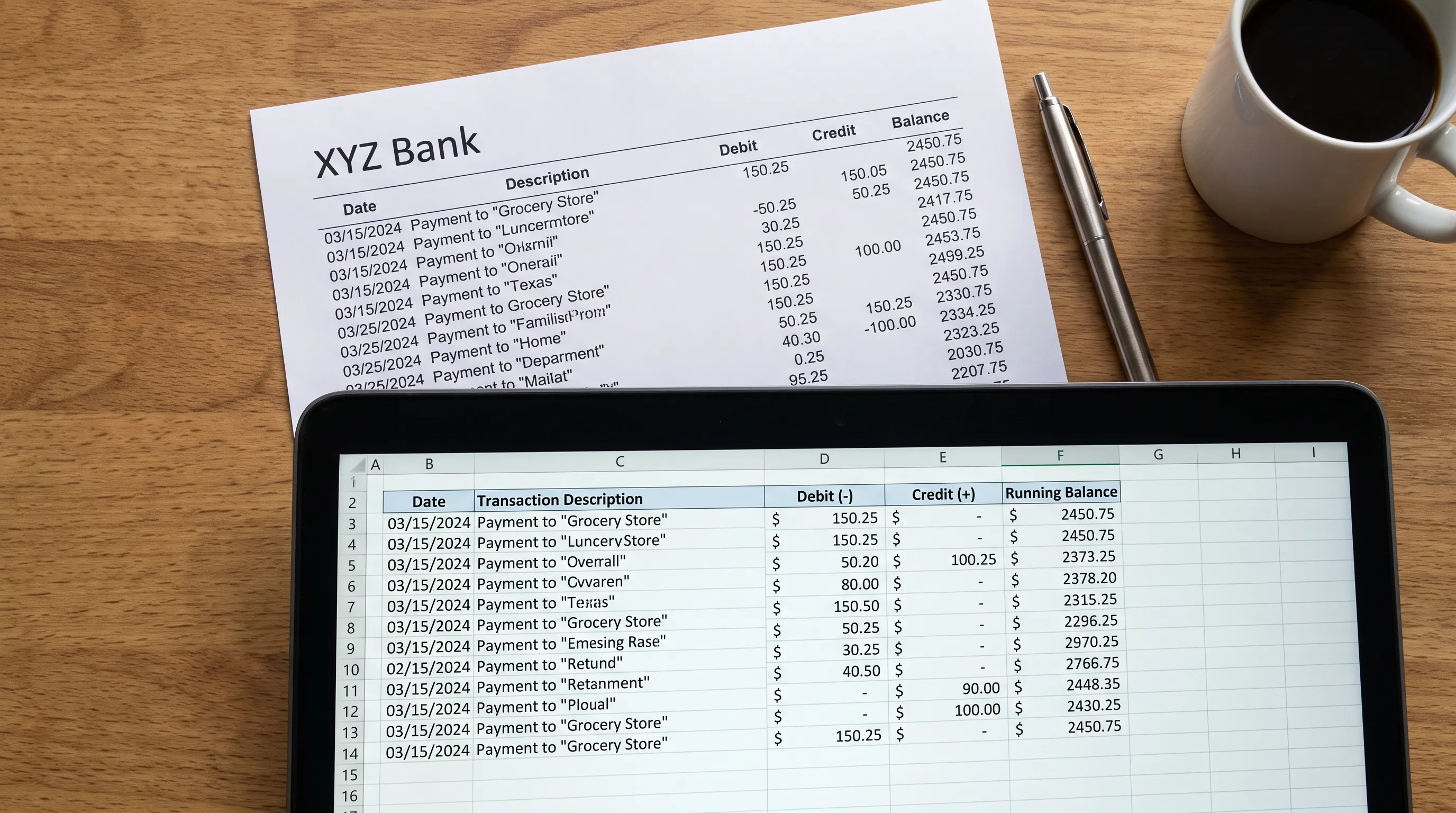
Fix column errors at the step where they begin
Do not patch dozens of worksheet cells if the problem originates in one query step. Correcting the transformation is more repeatable and makes the next refresh less fragile.
Use this troubleshooting table when you import data from PDF to Excel and the result looks inconsistent:
| Symptom | Likely cause | Practical correction |
|---|---|---|
| Amounts appear inside descriptions | Table boundaries were detected incorrectly | Inspect another detected table or use structured extraction suited to the document |
| A description becomes several transactions | Wrapped lines were treated as separate records | Rejoin continuation text before finalizing rows |
| Dates look valid but have swapped meanings | The wrong locale was used | Remove the incorrect conversion and parse the source text with the correct locale |
| Totals ignore visible amounts | Values remain text | Check separators, spaces and currency symbols before numeric conversion |
| Identifiers lose leading zeros | Automatic numeric conversion | Return to the original text and assign the Text type earlier |
| Transactions disappear after deduplication | Legitimate repeated payments were removed | Review source rows rather than deduplicating on date and amount alone |
Save the corrected query alongside the workbook. Refresh it against a new document only after checking that the new layout and field meanings still match.
If your next step is an accounting upload, our guide to cleaning a bank statement CSV before importing explains the separate formatting decisions required by the destination system.
Example: keep energy payments separate from energy usage
Suppose you are building an energy-cost workbook from bank statements and supplier invoices. The bank records show payments; the invoices may contain billing periods, usage quantities and taxes. Those are related records, not interchangeable columns.
When you import data from PDF to Excel for this analysis, put payment amounts in a payments table and consumption figures in an invoice table. Match them using appropriate references and billing periods rather than pasting everything into one amount column.
A payment made in October might cover September's consumption. Treating payment date as usage month could distort the comparison even when every extracted number is correct.
For businesses in the Arnhem-Nijmegen region, independent energy-saving and subsidy advice from REE can help turn reliable cost information into practical next steps. Keep that decision-making separate from extraction validation: a correct payment total does not establish energy savings or subsidy eligibility.
The same principle applies to other financial PDFs. Preserve what each field means, not just where it appeared on the page.
Frequently asked questions
Can I import data from PDF to Excel on a Mac? The available connectors depend on your Excel version and platform. Check your Data menu rather than following Windows instructions blindly. If the PDF connector is unavailable, extract the document into XLSX or CSV using a suitable tool, then check the resulting columns and values in Excel.
Can Excel use OCR for scanned tables? Excel's Data from Picture feature, where available, can recognize table data in an image. It is not the same workflow as processing a multi-page scanned PDF. For longer statements, OCR combined with structured table extraction is generally more practical, followed by source and totals checks.
Should I export as XLSX or CSV? XLSX can retain cell types and workbook structure. CSV contains delimited text, so opening it directly may trigger unwanted date or identifier conversions. For CSV, use Data > From Text/CSV and set the relevant types during import.
Is it safe to use an online PDF converter? Assess the provider before uploading financial documents. Review storage location, retention and deletion terms, access controls and your organization's requirements. Use a redacted or synthetic sample for initial testing where possible. A convenient converter is not automatically an appropriate place for sensitive records.
Use verified extraction when the numbers need to reconcile
Power Query offers control over table cleanup, but it does not make a plausible-looking extraction financially correct by itself.
If you regularly import data from PDF to Excel for financial work, Extract Bank Statements converts bank statement PDFs into Excel, CSV, OFX or JSON and verifies figures against the statement's running balance and declared totals before export. It also supports scans and photos through OCR.
Start with the free first conversions and compare the exported rows with your source statement before incorporating them into your workflow.