
How to Clean a CSV File Bank Statement Before Importing
Thomas Gak-Deluen10 min read
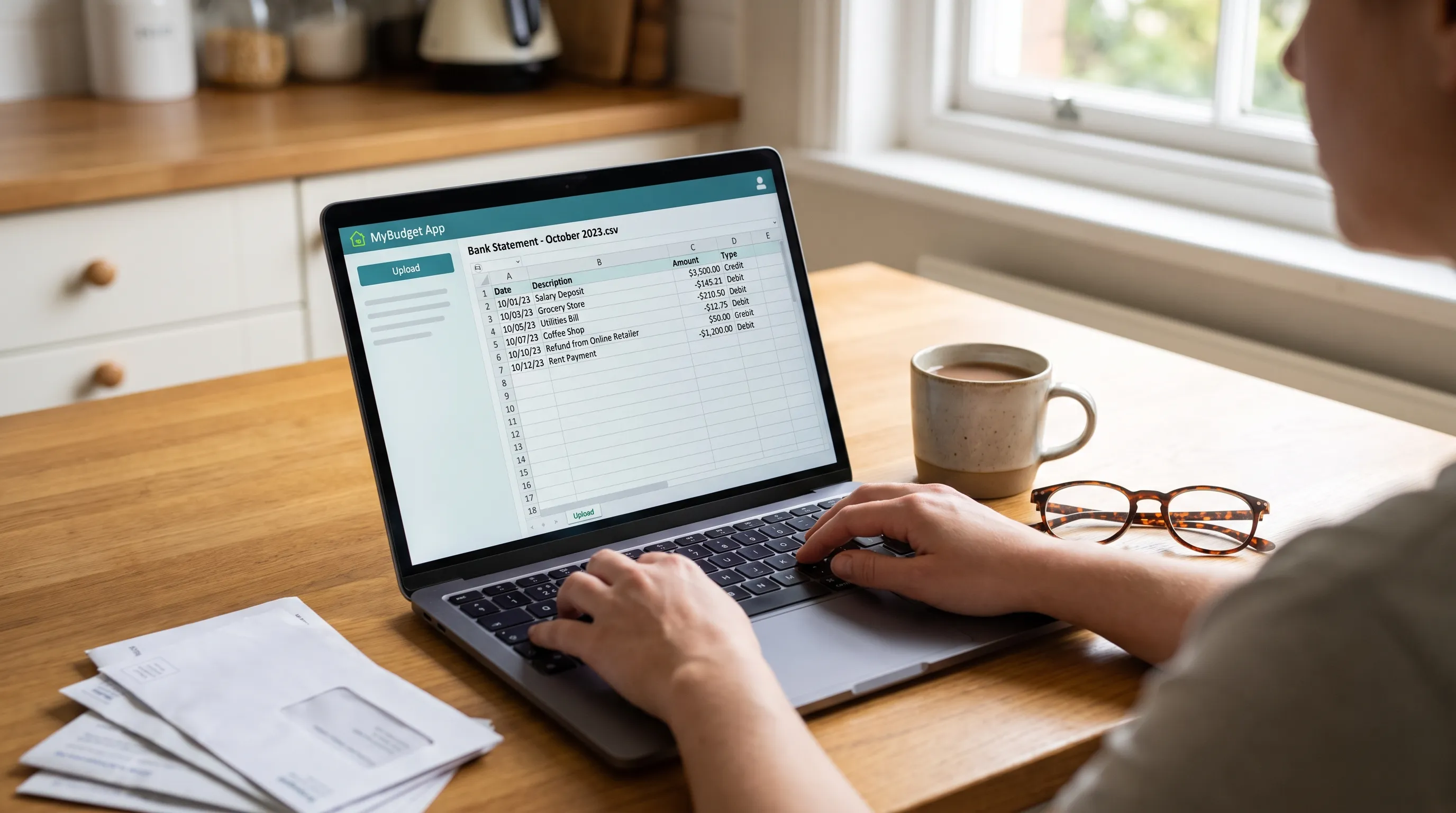
Cleaning a csv file bank statement before importing means making the data readable by your accounting software without changing what the bank recorded. Dates, decimal separators, transaction signs and duplicate rows all need attention. A file can look tidy in Excel and still import withdrawals as deposits or silently lose leading zeros in reference numbers.
The safest approach is to keep the original file untouched, create a working copy and check the destination’s import requirements before editing. Then validate the cleaned data against the source statement and run a small test import. This guide walks through that process, including the differences between cosmetic cleanup and changes that can alter financial records.
1. Confirm the destination’s import requirements
Start with the application receiving the file, not the spreadsheet editor. Download its sample CSV or review its import instructions. Different systems expect different column names, date formats and transaction layouts.
Before editing a csv file bank statement, establish whether the importer expects one signed amount column or separate money-in and money-out columns. Also confirm whether it requires a transaction type, account identifier or currency code.
A typical mapping might look like this, but your destination’s template takes precedence:
| Source field | Possible destination field | What to confirm |
|---|---|---|
| Booking date | Date | Accepted format and whether booking or value date is required |
| Transaction details | Description | Character limits and treatment of multiline text |
| Debit and credit | Amount | Whether withdrawals must be negative |
| Bank reference | Reference | Whether the field must remain text |
| Running balance | Balance or excluded | Whether the importer accepts it at all |
Do not assume a column named “Debit” means the same thing in every export or accounting application. Check the source statement’s meaning and the importer’s convention separately.
Keep three versions: the original export, a working file containing the source fields and an import-ready file containing only the required columns. That separation lets you retain balances and references for verification without forcing them into an incompatible template.
2. Fix the structure of your csv file bank statement
Open the file through a controlled import rather than double-clicking it. In Excel, use Data > From Text/CSV, inspect the delimiter and choose the appropriate transformation options before loading. Set account identifiers and reference numbers to text before automatic conversion can remove leading zeros or round long numbers.
Check whether the file uses commas, semicolons or tabs as separators. A semicolon-delimited export can be intentional, especially when amounts use decimal commas. If an entire row appears in one cell, investigate the delimiter before splitting anything manually.
Remove report material that is not part of the transaction table: account summaries, repeated page headings, footer text and blank separator rows. Keep opening and closing balances in your verification records even when they do not belong in the import file.
Be careful with wrapped descriptions. A continuation line may belong to the previous transaction rather than represent a new one. Join it only after confirming the relationship in the original statement.
The CSV format described in RFC 4180 explains why fields containing commas, line breaks or quotation marks need correct quoting. Use a spreadsheet export or CSV-aware parser instead of replacing commas throughout the file. Otherwise, a description such as Payment, monthly subscription can become two columns.
3. Normalize dates without guessing
Dates in a csv file bank statement should be converted only after you establish the source convention. 03/04/2026 could mean March 4 or April 3. Formatting the cell differently does not resolve that ambiguity.
Look for an unambiguous date elsewhere in the statement, such as 23/04/2026, and check the bank’s export documentation. When using a spreadsheet transformation tool, select the source locale explicitly rather than relying on your computer’s regional settings.
Preserve the distinction between these fields:
- Booking date: The date the bank posts the transaction to the account.
- Value date: The date used for value or interest purposes, which may differ from the booking date.
- Transaction timestamp: A more precise record that may include a time zone.
Use whichever field the destination requires. Do not substitute value dates for booking dates simply because they are more complete.
Convert dates to the accepted output format, such as YYYY-MM-DD, only when the importer supports it. A visually reformatted date in Excel may still export differently, so inspect the resulting CSV as text.
Finally, check that the dates fall within the expected statement period. Retain the bank’s original transaction order while validating running balances. Sorting rows by date alone can rearrange same-day transactions and make a correct balance sequence appear inconsistent.
4. Standardize amounts and transaction signs
Amount cleanup is where small formatting changes can produce large financial errors. In a csv file bank statement, distinguish decimal separators from thousands separators before removing either.
These examples illustrate conversions that are valid only after confirming the source conventions:
| Source value | Confirmed source meaning | Normalized value |
|---|---|---|
1,234.56 | Comma groups thousands, period marks decimals | 1234.56 |
1.234,56 | Period groups thousands, comma marks decimals | 1234.56 |
(42.90) | Parentheses indicate an outflow | -42.90 |
42.90 DR | DR indicates an outflow for this statement | -42.90 |
Remove currency symbols only after preserving the currency elsewhere when needed. Do not combine USD and EUR amounts into one total or assume every currency uses two decimal places.
For a deposit account using a positive-inflow convention, separate columns containing positive debit and credit magnitudes can be converted using:
Signed amount = Credit - Debit
That formula is not universal. If the export already contains signed values, applying it blindly can reverse transactions. Credit card statements also need separate attention because purchases and payments affect the amount owed differently from a checking account balance.
Investigate rows containing both debit and credit values. Treat blank cells as missing until you confirm the bank uses blanks to mean zero.
For automated processing, use decimal arithmetic or an appropriate fixed-precision representation. Do not resolve discrepancies by rounding every value until the totals happen to match.
5. Clean descriptions while preserving the original evidence
Description cleanup should make transactions easier to read, not erase information needed for matching. Keep the original description alongside any normalized version in your working file.
For a csv file bank statement, safe changes often include trimming leading and trailing spaces, replacing nonbreaking spaces and joining confirmed continuation lines. Avoid removing all punctuation, digits or short codes. Those characters may contain invoice references, merchant identifiers or settlement details.
Separate merchant normalization from the bank description. For example, if your business buys boxes from a supplier such as custom corrugated packaging manufacturer Fris Karton, a consistent supplier name can help match payments with invoices. The actual bank description and payment reference should remain available for verification. Do not assume a particular bank descriptor without checking the transaction.
This distinction also prevents premature categorization. A payment to a supplier might represent stock, equipment, a deposit or another expense type. Cleaning the payee name does not establish the accounting treatment.
Check how the destination handles long descriptions. If it truncates them, preserve the complete source text in your working records and retain the most useful matching information in supported reference fields. Avoid overwriting the only copy of a transaction identifier to make a description shorter.
6. Identify duplicates without deleting legitimate transactions
Two transactions with the same date and amount are not necessarily duplicates. Monthly subscriptions, repeated purchases and batch payments can produce identical-looking entries.
When checking a csv file bank statement for duplicates, use a bank-provided transaction ID where available and confirm its uniqueness within the relevant account. Without an ID, compare several fields together: account, booking date, amount, reference, description and the source balance sequence.
Common duplicate causes include overlapping download periods, repeated extraction of the same page and importing a file that has already been uploaded. Each requires a different response.
For overlapping exports, compare the overlap against both source files. For suspected extraction duplicates, inspect the corresponding statement rows. For an already imported transaction, check the destination system rather than deleting it from the source evidence.
Keep a removal log recording the source row, reason and supporting reference. Do not rely on a spreadsheet’s “Remove Duplicates” command without reviewing what it considers identical.
Record transaction counts before and after cleanup. Every reduction should have an explanation. A lower row count is not proof of a cleaner file, particularly when descriptions wrap across multiple lines.
7. Verify the cleaned data against the statement
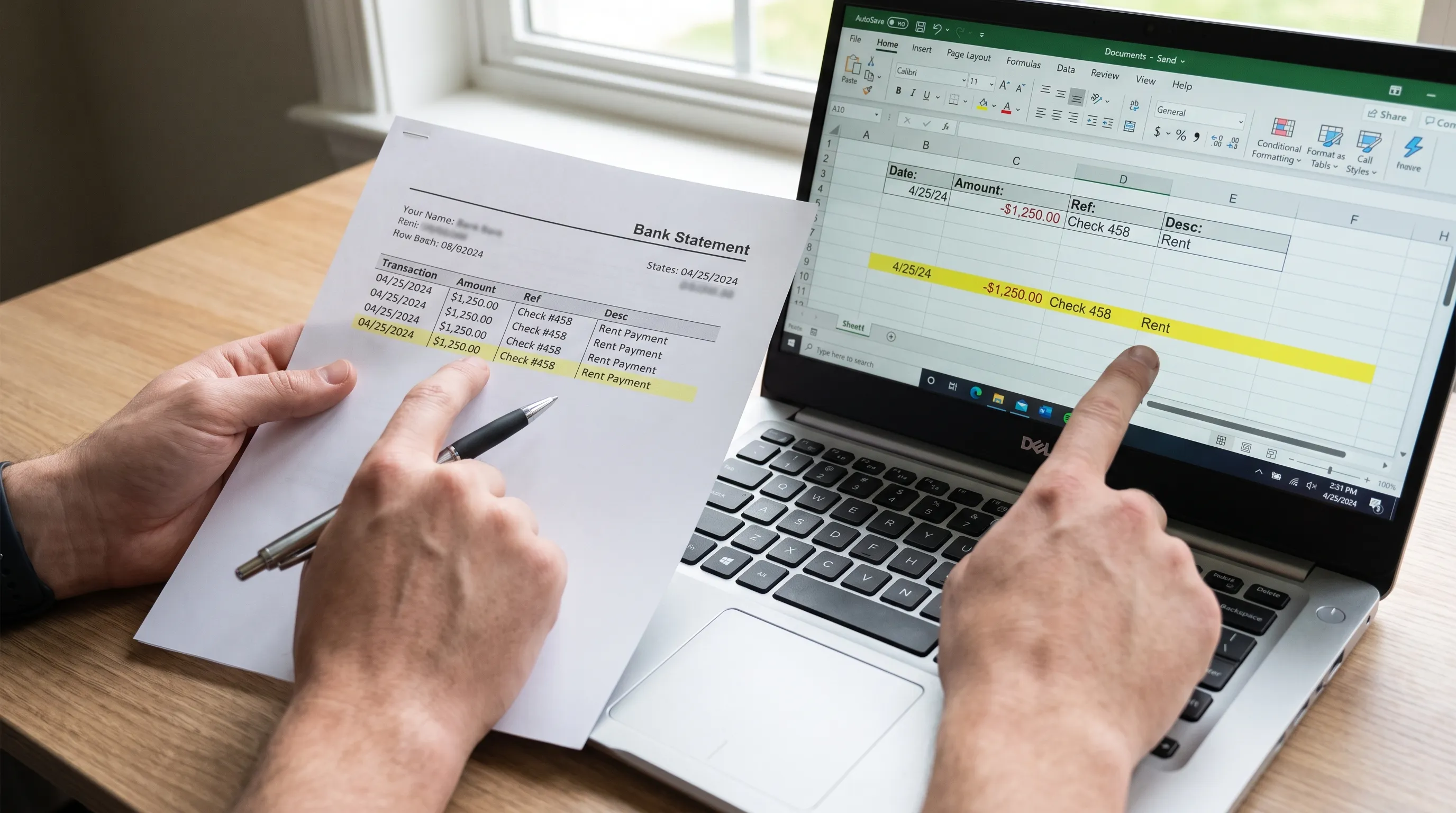
Once formatting is consistent, verify that the financial content still matches the source. For a deposit account expressed as positive inflows and negative outflows:
Opening balance + Sum of signed transactions = Closing balance
Where the statement includes a running balance, check each transaction in the bank’s original order:
Previous balance + Signed transaction amount = Next balance
First confirm that the statement’s balance convention matches these equations. A credit card’s outstanding balance, for example, should not be treated as a deposit account’s available funds.
Also compare total inflows, total outflows and transaction counts where the statement provides comparable figures. Matching only the net movement can miss offsetting errors, such as one omitted deposit and one omitted withdrawal of the same amount.
For a structured source review, follow the steps for reading a bank statement and verifying its transactions. Keep these checks separate from categorization and reconciliation against your accounting ledger.
A csv file bank statement that balances is not automatically complete or correctly labeled. Dates, descriptions and references can still be wrong, and offsetting errors can leave the closing balance unchanged. The explanation of what bank statement reconciliation proves and what it does not covers that limitation.
If a mismatch appears, find the first point of divergence and compare it with the source. Never insert a balancing transaction simply to make an import pass.
8. Export safely and run a test import
Create the final file from the verified working copy. Include only the columns the importer supports, in the required order, and export with the expected delimiter and encoding. UTF-8 is useful for accented names and international descriptions, but confirm the destination’s requirements.
Reopen the export in a plain-text viewer or CSV-aware tool. Check that dates, decimal values and quoted descriptions survived serialization. Do not rely solely on how the spreadsheet displayed them before saving.
Before uploading a csv file bank statement, inspect text fields for spreadsheet formula behavior. Descriptions beginning with characters such as =, +, - or @ may be interpreted as formulas by some spreadsheet applications. Import those fields as text or use a destination-supported escaping method. Do not blindly prefix every field, since legitimate negative amounts must remain numeric.
Your final check should cover:
- Required headers, column order and delimiter match the importer.
- Dates use the correct source interpretation and accepted output format.
- Amount signs and currency treatment match the destination’s rules.
- Identifiers remain intact, including leading zeros.
- Removed rows are documented and financial checks pass.
- The file contains only the account details needed for import.
Use a preview or sandbox import if available. Otherwise, test a small, clearly tracked subset and confirm how to remove it before importing the full file. Inspect at least one deposit, withdrawal, decimal amount and description containing punctuation. Prevent the test rows from being imported twice.
Frequently asked questions
Can I clean a bank statement CSV in Excel? Yes. Import it through the text/CSV workflow, control data types and preserve the original file. Double-clicking a CSV can trigger automatic conversions that change dates or identifiers before you review them.
Should I remove the balance column before importing? Only if the destination does not accept it. Keep the balance column in your working file for verification, then exclude it from the import-ready version when required.
Why does my csv file bank statement import withdrawals as deposits? The source and destination may use different sign conventions, or debit and credit columns may be mapped incorrectly. Compare a known deposit and withdrawal with the original statement before changing the full file.
Is matching the closing balance enough? No. Compare transaction counts, inflow and outflow totals where available, running balances and source fields. Offsetting errors can preserve the closing balance while leaving individual transactions wrong.
Start with verified extraction when your source is a PDF
If your statement is a PDF rather than a native CSV, extraction quality affects how much cleanup you need. Extract Bank Statements converts bank statement PDFs into CSV, Excel, OFX or JSON and checks figures against the statement’s running balance and totals before export. It also supports scans and photos through OCR.
Use those checks as a starting point, then apply the destination-specific formatting, field mapping and test-import steps above before adding the data to your accounting workflow.