How to Complete a Bank Statement Download for a Custom Date Range
Thomas Gak-Deluen10 min read
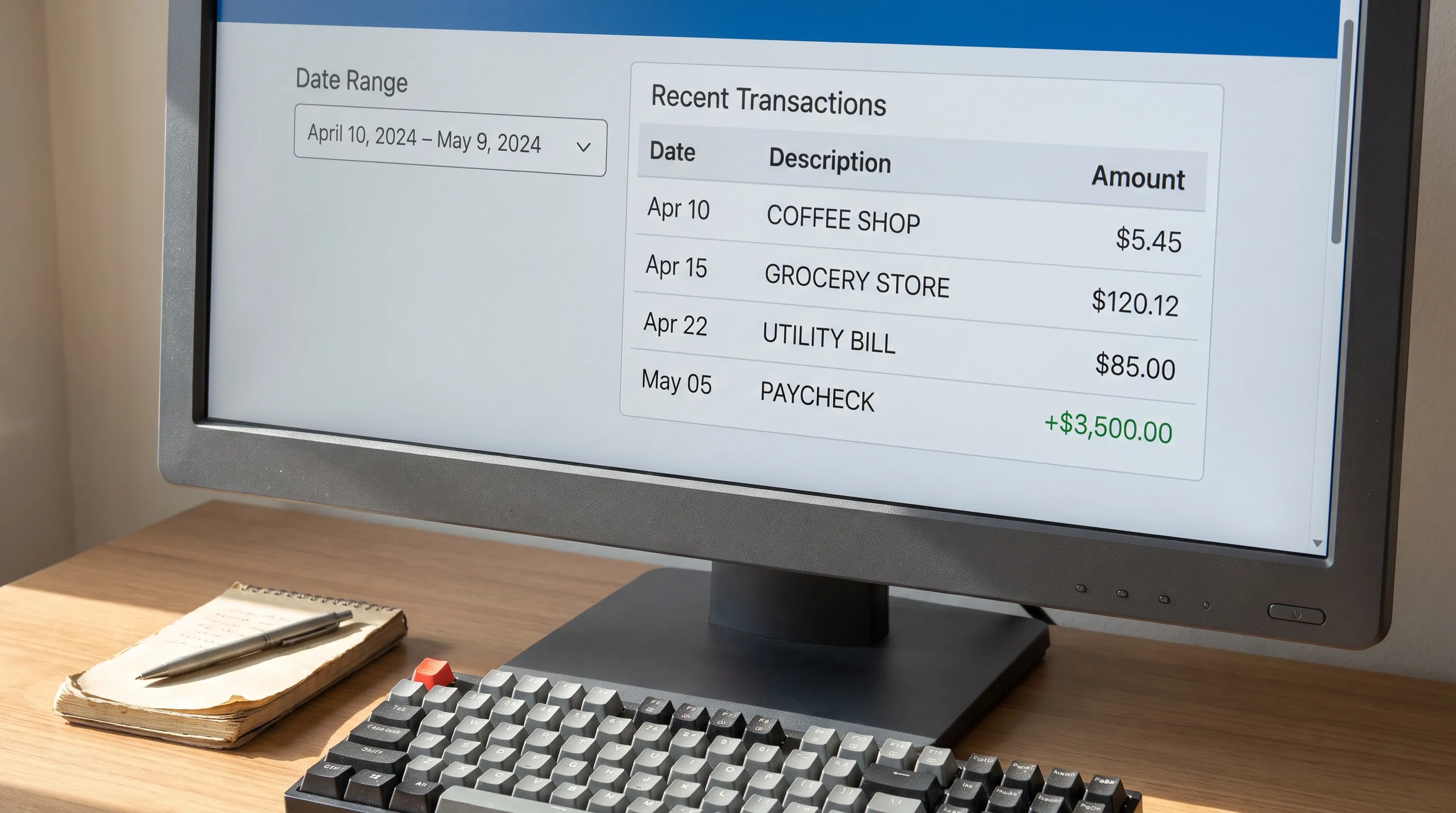
A bank statement download for a custom date range is not always available from the same menu as your monthly statements. Many banks issue official PDFs only for fixed statement cycles, while their transaction-history tools let you choose individual dates. The right approach depends on whether you need a bank-issued document for someone else or a precise set of transactions for your own records.
Here is how to get the correct period without confusing a filtered transaction list with an official statement.
First, distinguish a statement from transaction history
Before downloading anything, confirm what the recipient will accept. These documents serve different purposes:
| Document | Date coverage | Best use |
|---|---|---|
| Official statement PDF | The bank’s assigned statement cycle | Applications, recordkeeping and requests for bank-issued evidence |
| Transaction-history export | Often a selectable date range | Expense reviews, bookkeeping and analysis |
| Interim statement | A partial period, if the bank offers it | Requests covering activity since the last statement |
| Archived statement | A previously completed statement cycle | Older records and historical reviews |
A transaction export may lack your address, opening balance or the bank’s statement formatting. Saving it as a PDF does not turn it into an official statement. If someone requests specific dates, ask whether they accept the complete statements covering those dates or require a bank-issued interim document.
Set the dates for your bank statement download
Write down the account, start date, end date and intended use before opening your banking portal. For example, an expense review might cover April 10 through May 9, even though your bank issues statements for calendar months.
Check whether both boundary dates are included. If the portal does not explain its date filter, inspect transactions on the first and last days after exporting. Also confirm which date field it uses:
- Transaction date: When a purchase or other activity occurred.
- Posting date: When the bank recorded the completed transaction on the account.
- Value date: A separate date some banks use for interest or settlement purposes.
For matching a statement’s recorded activity, posting dates are generally the appropriate starting point. Pending card charges can change or post outside your selected period.
For a personal healthcare expense review, you might match payments for chiropractic care at Move Well MD against itemized receipts. Select the period containing the posted payments, which may differ from appointment dates. Bank records show account activity, not treatment details or insurance eligibility.
Download through your bank’s website
For a bank statement download on a desktop browser, start with your bank’s official website or a trusted bookmark. Menus vary, so treat the labels below as examples rather than instructions for a particular bank.
- Sign in securely: Complete the bank’s authentication process on a device you trust.
- Select the account: Confirm the account type and last few digits, especially if you have several personal or business accounts.
- Open the relevant area: Look for Statements, Documents or eStatements for official PDFs. Look for Activity, Transactions or Account History for selectable dates.
- Choose the period: Select a statement cycle or enter your custom start and end dates. Check the required date format before submitting.
- Choose the file type: Download the bank-issued PDF for an official statement or choose CSV or another available format for analysis.
- Save and inspect the file: Open the download and confirm the account, period and page count before relying on it.
Some portals offer a print button instead of a download button. Printing an activity page to PDF preserves that view, but it may omit transactions hidden behind pagination. Prefer the bank’s document download or full export when available.
Use the mobile app when its document tools support your needs
A bank statement download in an app may sit under a different menu from the browser version. Open the account, then look for Statements, Documents or an account-management menu. Select the period and use the app’s download or save-file option.
If the app only shows recent activity, try the bank’s desktop website. A missing custom-date control in the app does not necessarily mean that the bank lacks one elsewhere. Avoid treating screenshots of a scrolling transaction feed as a complete record.
After saving, check the file in your device’s file manager. Make sure it is the statement itself rather than a shortcut that requires another login. On a shared device, remove local copies when finished and sign out of banking.
Paperless enrollment may affect access to electronic documents, but availability varies. Check the bank’s terms rather than assuming enrollment will immediately reveal every historical statement.
When the bank cannot issue a custom-range PDF
If a bank statement download only offers monthly or other fixed cycles, do not edit the dates printed on the statement. Instead, choose one of three routes based on the document’s purpose.
Download every statement that overlaps your period
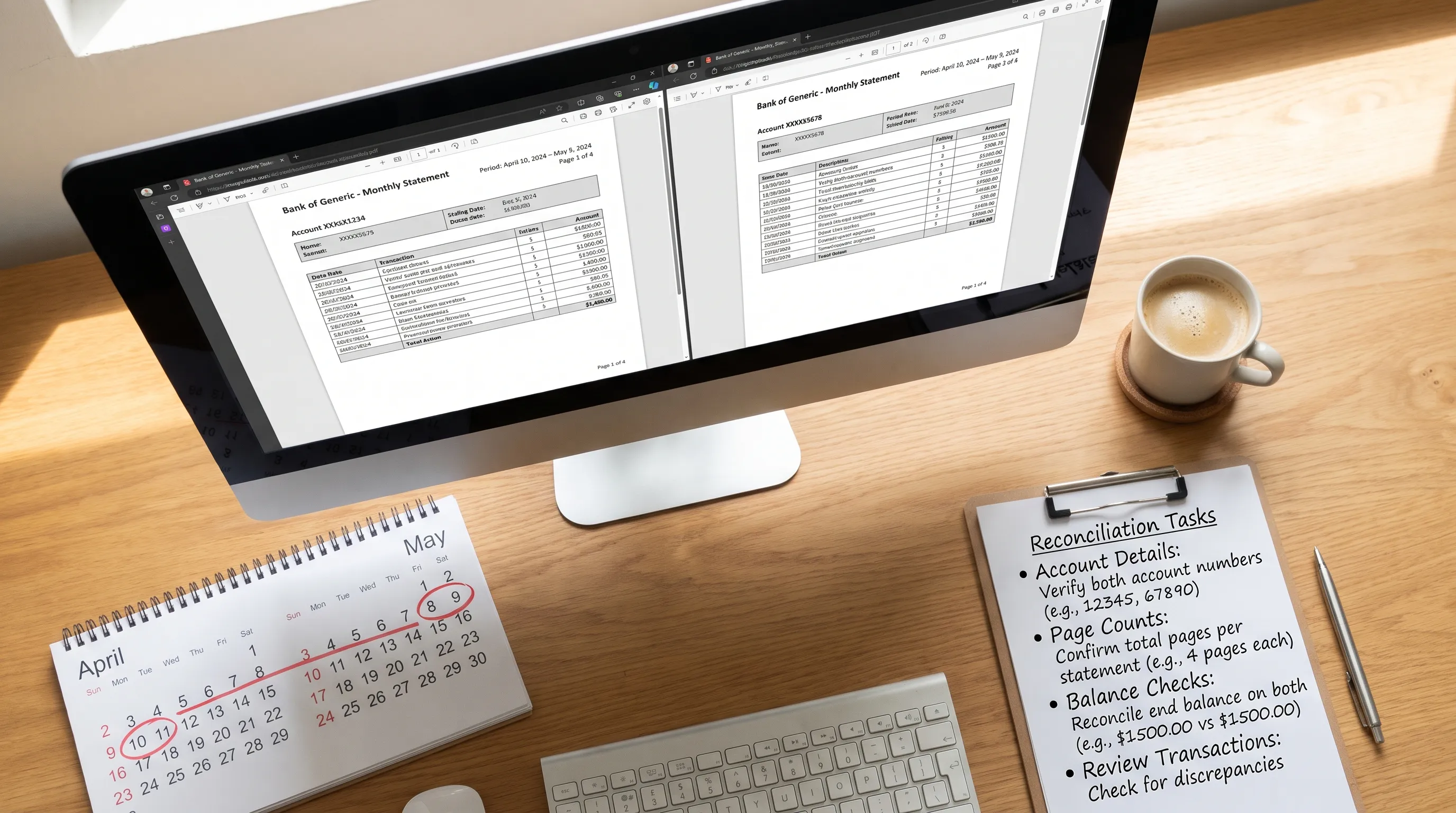
For April 10 through May 9, you may need both April and May statements. A bank with different cycle dates could require a different combination. Read the actual beginning and ending dates on each PDF rather than relying on its filename.
Keep the complete originals, including pages outside your selected range. Those pages preserve the context of opening balances, closing balances and statement totals. Confirm that the recipient accepts this approach before sending them.
Request an interim or historical document
Ask the bank whether it can provide an interim statement, an account-activity report or archived statements. Explain the exact dates and required format. Document names, availability, fees and delivery times vary by institution.
For a closed account or a period missing from online banking, contact support through a verified channel. Do not assume that the online archive represents every record the bank can retrieve.
Create a separate working report
If you only need an expense review or bookkeeping file, download the covering statements and create a filtered spreadsheet. Label it as a custom-date transaction report, not as a new bank-issued statement. Keep the source PDFs alongside it.
Check the period and figures before using the file
A successful bank statement download should cover the requested activity without missing pages or overlapping records. Start by checking the account identifier, currency, statement dates and page numbering. Make sure every file opens and that no page is cropped or unreadable.
Next, inspect the boundaries. Locate activity immediately before and after your selected period where available. This helps reveal a filter that used transaction dates when you expected posting dates, or an end date that was excluded.
For a deposit account, the basic balance relationship is:
Opening balance + credits − debits = closing balance.
Use the statement’s complete posted activity for this check. Credit card statements use different balance conventions, so follow their payment, charge and credit labels rather than applying the deposit-account formula blindly.
A spreadsheet containing only selected rows will not necessarily reconcile to the full statement’s opening and closing balances. If you need period-specific balances, establish the balance immediately before the selected activity and account for every posted movement through the end date.
Our guide to reading a bank statement and verifying its transactions explains the broader review process. Arithmetic agreement helps check completeness and extraction accuracy, but it does not prove that a document is authentic.
Turn monthly PDFs into an exact-date worksheet
When the bank supplies only fixed-cycle PDFs, work from complete documents first and filter afterward. This preserves the information needed to check the extracted figures against the original balances and totals.
Extract Bank Statements converts bank statement PDFs into CSV, Excel, OFX or JSON and checks figures against the statement’s running balance and declared totals before export. It also supports scanned statements and photos through OCR. These capabilities help produce usable transaction data, but they do not change the bank’s original statement period.
A practical workflow is to retain untouched PDFs, extract the complete activity and review any discrepancies before applying your dates. Then filter the exported worksheet using the appropriate date column. If you combine files, check for overlapping periods and repeated entries without assuming that identical amounts are duplicates.
Keep the unfiltered export as well as the final report. Record the source filenames, selected dates and date field used so you or a colleague can reproduce the result later.
This approach makes a bank statement download useful for an exact reporting period without presenting an edited spreadsheet as an official document. Before importing the result into accounting software, follow the checks for cleaning a bank statement CSV, particularly date formats and debit-credit signs.
Troubleshoot missing documents and failed downloads
A missing file does not always require another request to the bank. First identify whether the problem concerns access, document availability or the downloaded file itself.
| Problem | What to try |
|---|---|
| Custom dates are unavailable | Check transaction history instead of Statements, or try the desktop website |
| A recent statement is missing | Confirm whether the statement cycle has closed and the document has been issued |
| An older period is unavailable | Look for an archive, then ask the bank about historical records |
| Download does not start | Check browser download permissions and allow necessary pop-ups only for the verified bank site |
| PDF will not open | Check the file size, download it again and try a current PDF reader |
| File requires a password | Follow the bank’s instructions or contact support through a verified channel |
| Account access is locked | Use the official recovery process rather than repeatedly guessing credentials |
If a bank statement download produces an empty report, confirm the account and date format, then check whether the filter excludes pending activity. A legitimate zero-transaction period can also produce no rows.
Do not upload a sensitive statement to an unfamiliar repair or password-removal website. If the bank’s original file appears damaged, request another copy from the bank.
Protect the original and share only what is needed
Obtain documents through authenticated banking rather than links in unexpected messages. The FTC’s guidance on recognizing and avoiding phishing scams explains why contacting an organization through a known website or phone number is safer than trusting a message’s link.
Keep an untouched original in restricted storage. A logo, filename or plausible balance is not enough to establish authenticity. If you receive a document from someone else and need stronger assurance, use an authorized verification process with the bank or relevant recipient.
Before sharing a bank statement download, ask which details the recipient requires and whether redaction is allowed. Removing account details or transactions can make a document unacceptable for its intended purpose.
When redaction is permitted, work on a copy and use a proper redaction tool that removes the underlying information. Drawing a black rectangle over text may leave it recoverable. Reopen the saved copy and check that sensitive text cannot be searched or copied. Use the recipient’s approved secure upload method rather than a public sharing link.
Frequently asked questions
Can I download an official statement for any dates I choose? Not necessarily. Many banks issue official statements for fixed cycles. Custom-date transaction exports may be available separately, while an interim statement may require a request to the bank.
Can a bank statement download include the current month? Transaction history may include current-month activity, but an official statement usually follows the bank’s statement cycle. Check whether the file contains posted transactions only or also includes pending items.
Is a CSV accepted instead of a bank-issued PDF? That depends on the recipient. A CSV is useful for analysis but may lack identifying details and statement balances. Confirm the required format before preparing your records.
Can I remove transactions outside my requested dates? You can filter a separate working spreadsheet for analysis. Do not alter an official statement and present it as the bank’s original. Ask whether the recipient accepts full covering statements or a clearly labeled custom report.
Need usable data from the statements you downloaded?
Keep the bank-issued PDFs as your source records. If you need an exact-date worksheet, Extract Bank Statements can convert those PDFs into structured data and check the figures against their running balances and totals. Review the results, apply your date filter and retain both the original documents and the resulting report.