
How a Text Scanner Extracts Tables From Financial PDFs
Thomas Gak-Deluen10 min read
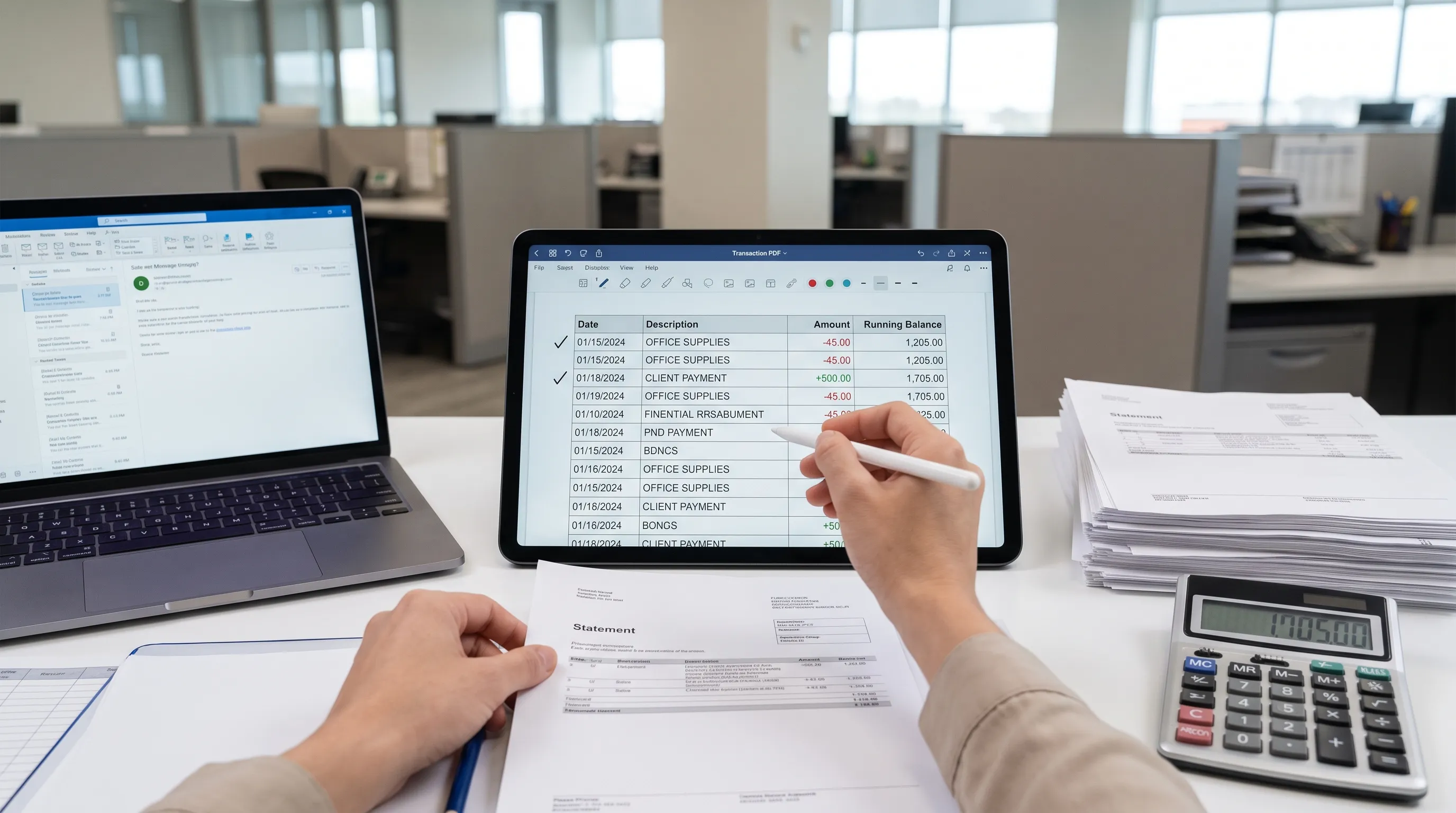
A text scanner can read a financial PDF, but extracting a reliable table from it takes more than recognizing printed words. Bank, credit card, brokerage and payment statements often look structured to humans because dates, descriptions and amounts line up neatly on the page. Inside the PDF, though, those rows may be fragmented into individual text boxes or flattened into a scanned image. The real work is turning visual layout into accounting-grade data that keeps every transaction in the right row, column and order. For finance teams, bookkeepers, lenders and auditors, the difference between “text copied from a PDF” and “usable transaction data” is the difference between a spreadsheet that merely looks right and one that can be checked, reconciled and trusted.
What a text scanner actually reads in a financial PDF
A PDF is designed for consistent display, not for clean data extraction. Even a digitally generated statement can store each character, word or line in ways that do not match the table you see on screen. A bank may position the date, description, debit, credit and balance as separate objects, without telling software that they belong to the same row.
Scanned PDFs are harder because they begin as images. The system first has to identify letters and numbers through OCR, then reconstruct their positions. If the photo is tilted, blurry or shadowed, recognition errors can turn $1,208.40 into $1208.4O, or merge a minus sign into the edge of a column.
A strong extraction process treats the PDF as both a document and a financial record. It reads text, measures layout and then validates whether the resulting table behaves like a statement.
Why financial tables are harder than ordinary tables
Most table extraction tools work reasonably well on simple grids. Financial PDFs are different because they often use invisible structure. A statement may have no drawn borders, wrapped merchant names, continuation lines, subtotal sections and different layouts across pages.
A well-designed text scanner does not assume that every visible line is a complete transaction. It has to decide whether a line is a new row, a continuation of the previous description or a page header repeated by the bank. That decision affects every downstream calculation.
| PDF feature | Extraction risk | Financial consequence |
|---|---|---|
| Wrapped descriptions | One transaction becomes two rows | Duplicate or incomplete records |
| Right-aligned amounts | Debits, credits and balances are confused | Wrong cash flow totals |
| Repeated page headers | Header text is imported as data | Spreadsheet cleanup becomes manual |
| Missing table borders | Column boundaries are guessed poorly | Amounts shift into wrong fields |
| OCR errors in numbers | Digits or decimal points are misread | Reconciliation fails |
This is why generic copy-and-paste usually breaks on statements. The page is readable, but the extracted data has not yet proven that it is financially coherent.
Step 1: classify the PDF before extracting rows
The first practical step is document classification. The system needs to know whether it is working with a born-digital PDF, a scan, a photo or a hybrid file that contains both image layers and embedded text.
For born-digital files, extraction can begin with text objects and their coordinates. For scans and photos, OCR must run first. Image cleanup may include deskewing, contrast adjustment, noise reduction and page boundary detection. These steps do not create financial data on their own, but they improve the odds that the OCR layer is accurate enough for table reconstruction.
Blurry statements deserve special handling because small recognition errors can be expensive in finance. If you work with phone photos or scanned bank records, the process is similar to the one described in this guide to how an OCR reader online handles blurry statement scans.
Step 2: detect table regions and reading order
Once text exists, the software looks for table regions. It groups words by coordinates, spacing, alignment and repetition. Dates often form a left-hand anchor. Amount columns usually align on decimals. Running balances frequently sit at the far right. These patterns help the tool infer the skeleton of the table even when no visible gridlines exist.
At this stage, the text scanner must also solve reading order. Humans naturally read across a row, then move downward. PDF internals may store text in a different order, such as all dates first, then all descriptions, then all amounts. If the scanner follows the internal order blindly, the output becomes a list of column fragments instead of transactions.
A robust parser uses geometry to rebuild rows. It measures which items share a horizontal band, which items are close enough to belong together and which lines are likely continuations. It also detects non-transaction zones such as opening balance summaries, fee notices, contact details and regulatory text.
Step 3: rebuild rows into usable fields
After table detection, the system converts visual rows into structured fields. A bank transaction table usually needs at least a date, description and amount. Many statements also include debit, credit, balance, reference, value date, currency or card number fields.
This step involves normalization. Dates must be converted to a consistent format. Amounts need decimal precision, signs and currency handling. Descriptions should preserve enough text to identify the transaction without absorbing unrelated footnotes or page labels.
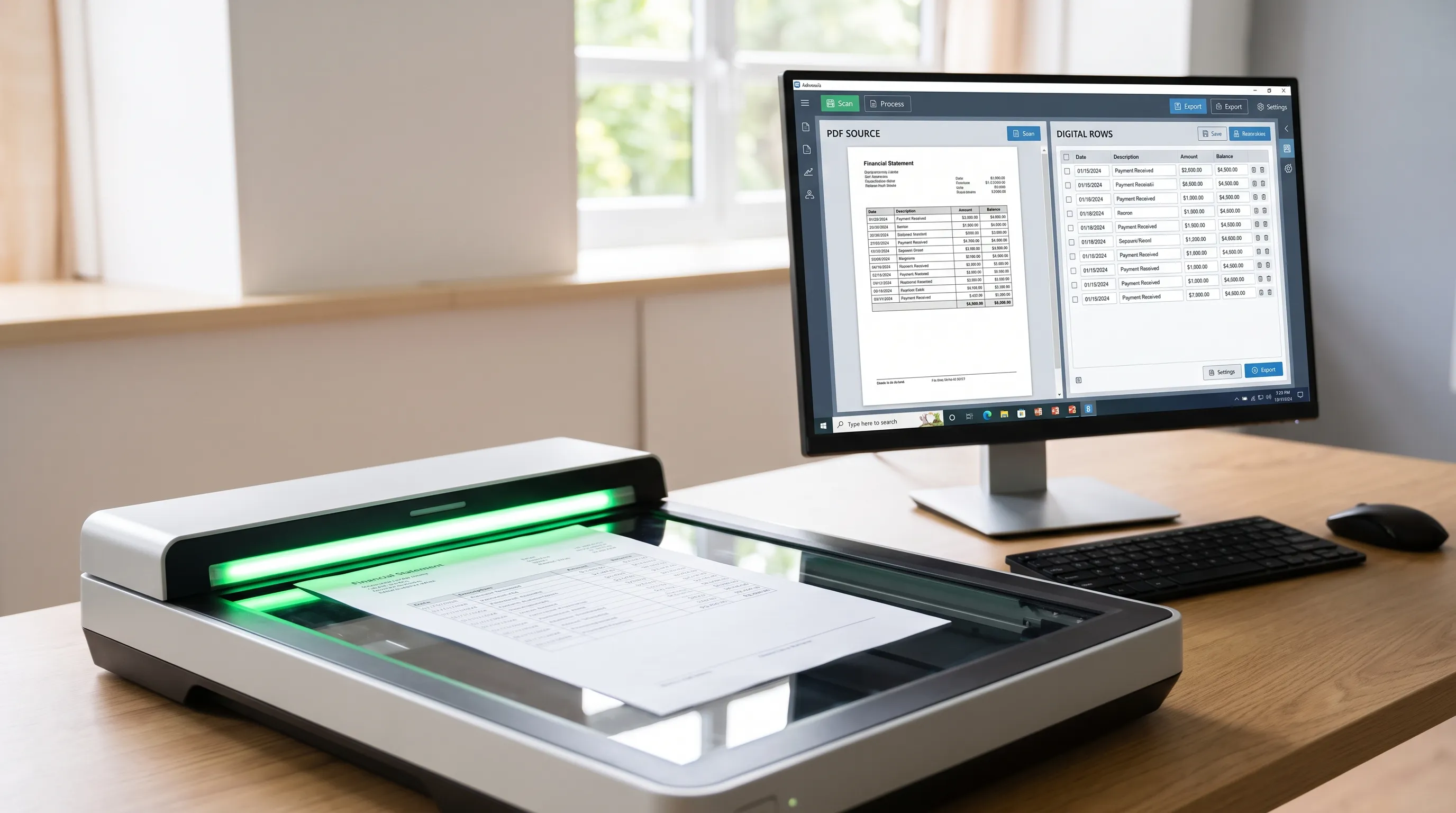
The best output is not just visually tidy. It should be predictable for formulas, imports and audit trails. For example, $45.10 CR, 45.10+, (45.10) and 45,10 may all need different interpretation depending on the bank, country and account type. A finance-aware parser keeps those choices explicit rather than silently flattening every amount into plain text.
Step 4: verify the table against financial logic
Extraction is not complete when the rows land in a spreadsheet. A financial table should be checked against the statement’s own logic. In bank statements, the most useful check is usually the running balance: opening balance plus and minus each transaction should equal the next balance, then the closing balance.
A text scanner built for financial PDFs can use this arithmetic as a quality control layer. If a digit is misread, a row is skipped or a debit is treated as a credit, the balance chain often exposes the issue. This does not prove that the bank’s original statement is correct, but it helps prove that the extracted version matches the source document.
| Verification check | What it catches | Example |
|---|---|---|
| Opening to closing balance | Missing or extra transactions | Closing balance does not match |
| Row-by-row running balance | Misread digits or wrong signs | A debit imported as a credit |
| Declared totals | Incorrect subtotal extraction | Fees total differs from source |
| Page continuity | Missing pages or duplicated pages | Balance jumps between pages |
| Currency consistency | Mixed symbols or formats | USD and EUR rows merged incorrectly |
Manual review still has a role, especially for unusual statements or low-quality scans. If you need a human checklist for the source document itself, this guide on how to read a bank statement and verify every transaction is a useful companion.
Step 5: export the data without losing meaning
Once rows are recognized and checked, the final step is export. CSV is useful for simple imports and databases. Excel works well for review, formulas and handoff to accountants. OFX can be better for accounting tools that expect financial transaction formats. JSON is often the right choice for APIs, automation and internal systems.
The export format should not erase the evidence behind the table. Finance teams often need page references, confidence flags, original text snippets or validation status so they can trace a number back to the statement. That matters when a client asks why an entry appears in a ledger, or when an auditor wants to compare the spreadsheet with the original PDF.
This is the core distinction behind exporting a bank statement to Excel: a workbook can look polished and still be unreliable if the extraction did not preserve row meaning, signs and balances.
Financial PDFs are not limited to checking accounts. Investment statements, brokerage activity and portfolio reports can also be turned into structured data for analysis. Once holdings and transactions are extracted, investors may compare their own allocations with broader market behavior through privacy-conscious tools such as anonymous portfolio benchmarking.
What to look for in a text scanner for financial PDFs
Choosing the right tool depends on the risk level of your workflow. If you only need a rough copy of a table once a year, a generic OCR tool may be enough. If you are preparing books, credit files, audit support or recurring finance operations, you need more than text recognition.
Look for capabilities that reduce manual correction and make errors visible:
- OCR support for scans and photos, not only embedded PDF text
- Table reconstruction that understands rows, columns and continuation lines
- Running-balance or total verification for bank and card statements
- Export options such as CSV, Excel, OFX and JSON
- Multi-currency handling when statements cross regions or accounts
- API access if the workflow needs automation
- Clear error reporting when a statement cannot be verified
A capable text scanner should tell you when it is unsure. In financial extraction, a flagged uncertainty is better than a confident mistake because it directs review to the exact row that needs attention.
Common failure points and how to reduce them
The biggest failure point is poor source quality. Crooked photos, low-resolution scans, folded paper and dark shadows all make recognition harder. A clean PDF from the bank portal will usually outperform a picture of a printed statement.
Layout variation is another source of errors. Some banks change statement formats across account types, card products or date ranges. Credit card statements may separate purchases, payments, interest and fees into different sections. Business accounts may include batch payments or international transfers with extra reference lines.
You can improve results by using complete statements, keeping pages in order and avoiding cropped screenshots. If you receive statements from clients, ask for original PDFs when possible. When scans are unavoidable, use flat lighting, capture the full page and keep the camera parallel to the document.
How Extract Bank Statements applies this in practice
Extract Bank Statements is built for financial PDFs rather than generic document capture. It converts bank statement PDFs into CSV, Excel, OFX or JSON, supports scans and photos with OCR and verifies figures against the statement’s running balance and totals before export.
That verification layer is the point. Instead of giving you rows that only appear plausible, the system checks whether the numbers add up according to the statement itself. It can support personal, business and credit card statements, including multi-currency documents, and its API is designed for automated finance workflows.
This does not remove the need for judgment. You still decide how transactions are categorized, whether an expense is deductible or whether a transfer belongs to a specific ledger account. The scanner’s job is narrower but essential: transform the PDF into structured data you can trust enough to use.
Frequently Asked Questions
Can a text scanner extract tables from scanned financial PDFs? Yes, if it includes OCR and layout reconstruction. The scan must first be converted into recognized text, then the system has to rebuild rows and columns from the text positions.
Why do financial PDFs extract incorrectly even when they look clear? PDFs are built for display. The visual table you see may be stored as separate text fragments without spreadsheet-like cell structure, so software has to infer the table from layout.
Is OCR accuracy enough for bank statement extraction? No. OCR accuracy matters, but financial extraction also needs row grouping, amount normalization and balance verification to catch missing rows, wrong signs and misread digits.
What export format should I use after extraction? Use CSV for simple imports, Excel for review and analysis, OFX for accounting workflows and JSON for APIs or automated systems.
How can I tell whether the extracted table is reliable? Check whether opening balance, transaction movements, running balances and closing balance match the original statement. If those controls fail, review the flagged rows before using the data.
Turn financial PDFs into verified tables
A financial PDF is not just a document to read. It is evidence for accounting, underwriting, tax work, audit support or investment analysis. The safest extraction workflow reads the text, reconstructs the table and then checks the numbers against the statement’s own balances and totals.
Extract Bank Statements helps turn PDFs, scans and photos into CSV, Excel, OFX or JSON while verifying the figures before export. That gives you structured data that is ready for analysis, with fewer manual checks and a clearer path back to the original statement.