
8 Checks for PDF Statements Before You Import Transactions
Thomas Gak-Deluen9 min read

An import can succeed technically and still put the wrong transactions into your books. Before converting pdf statements into accounting entries, check that the source is complete, the extracted rows match it and the destination will interpret those rows correctly. A clean-looking spreadsheet is not evidence that the numbers are right.
The eight checks below form a pre-import review for bookkeepers, business owners and finance teams. Work through them in order, keeping the original statement unchanged. Do not import a file with unexplained differences, even if your accounting software accepts it without an error.
1. Confirm the account, company and currency
Match the statement’s account identifier to the bank account selected in your accounting system. Use the account number or other bank-issued identifier, not just a filename such as September_statement.pdf. Filenames are easy to reuse or mislabel.
Confirm the account holder, statement period and account currency as well. A USD account and a EUR account at the same bank can have similar layouts, but their transactions must not land in the same ledger account without the appropriate currency handling.
For businesses using Dr. CRM’s multi-company management to organize invoicing and customer records, carry that company separation through to the accounting destination. The bookkeeping import still needs its own account and entity checks.
Prefer statements downloaded from the bank’s authenticated portal. If someone supplies a file, confirm which account and period it represents before relying on it. Checking pdf statements at this stage prevents an accurately extracted file from being imported into the wrong books.
Pass condition: The source account, legal entity and currency match the intended destination.
2. Check page completeness and period coverage
Review the PDF’s page count against any printed page numbering, such as “Page 1 of 6.” Look for missing pages, repeated pages and cropped edges. The last page may contain transactions or declared totals, not merely notices.
Next, compare the statement period with the dates already covered by your accounting records. A complete statement can still overlap a previous import. Monthly statements may also include no activity on their first or last calendar day, so transaction dates alone do not establish the document’s coverage.
When processing several files, record each account and statement period in a simple import log. Do not concatenate them until you have identified overlapping periods and duplicate documents.
A useful distinction is between document completeness and transaction completeness. Seeing every page establishes the first. Comparing all transaction rows with the extraction establishes the second, which comes later.
Pass condition: Every expected page is present once, and the period’s relationship to previous imports is understood.
3. Inspect readability before relying on OCR
Try selecting text in the PDF. A bank-generated document may contain selectable text, while a scan or photograph usually needs optical character recognition. Neither format guarantees accurate extraction: selectable text can have confusing reading order, and OCR can misread characters.
When reviewing pdf statements that contain scans, inspect the smallest amounts, decimal separators, minus signs and date characters at a readable zoom level. Watch for clipped right-hand columns, shadows across figures and faint printing. If an amount is not legible in the source, get a better copy rather than guessing.
Searchability is not the same as a usable transaction table. Our explanation of how OCR turns bank PDFs into searchable records clarifies that distinction.
Check the extracted data against difficult areas first: page edges, tightly spaced rows and transactions with long descriptions. These checks supplement, rather than replace, the full row review.
Pass condition: All transaction fields needed for import are readable, and uncertain characters have been resolved against the source.
4. Verify that transaction rows survived extraction
Compare the extracted rows with the PDF page by page. Focus on row boundaries, not just whether familiar descriptions appear somewhere in the output.
A description that wraps onto three lines should usually remain one transaction. Conversely, two adjacent transactions must not become one row. Repeated column headings, “balance brought forward” lines and page subtotals should not become payments or receipts.
Use transaction counts where the statement provides them. Otherwise, count the actual transaction entries, excluding headings and balance summaries, and compare that count with the export. Equal counts are useful evidence, but they do not prove that every field is correct.
Preserve the source order during this review. Sorting by date can rearrange same-day transactions and make running-balance comparisons harder. You can create a sorted working copy later if the destination requires one.
With pdf statements, pay particular attention to the last transaction on one page and the first transaction on the next. Page transitions can separate a description from its amount or repeat a carried balance.
Pass condition: Every source transaction appears exactly once, with its date, description and amount attached to the correct row.
5. Check signs, decimal precision and currency meaning
Determine how the statement represents money moving in and out. It may use separate debit and credit columns, signed amounts or suffixes such as DR and CR. Your import file must translate that convention into the destination’s required format.
Do not assume that a negative balance means a negative transaction. An overdraft balance describes the account’s position after a transaction, not the direction of that transaction.
Check decimal and thousands separators explicitly. For example, 1,234.56 and 1.234,56 can represent the same value under different locale conventions. A parser using the wrong convention can change an amount substantially without producing a visibly broken row.
For foreign-currency purchases, distinguish the original purchase amount from the amount posted to the account. An account-currency import generally needs the posted amount; do not substitute the foreign amount simply because it appears first in the description.
Credit card statements need separate attention. Purchases generally increase the amount owed, while payments reduce it. Apply the issuer’s stated balance convention rather than a checking-account rule.
Pass condition: Every amount retains its source precision, currency meaning and correct effect on the destination account.
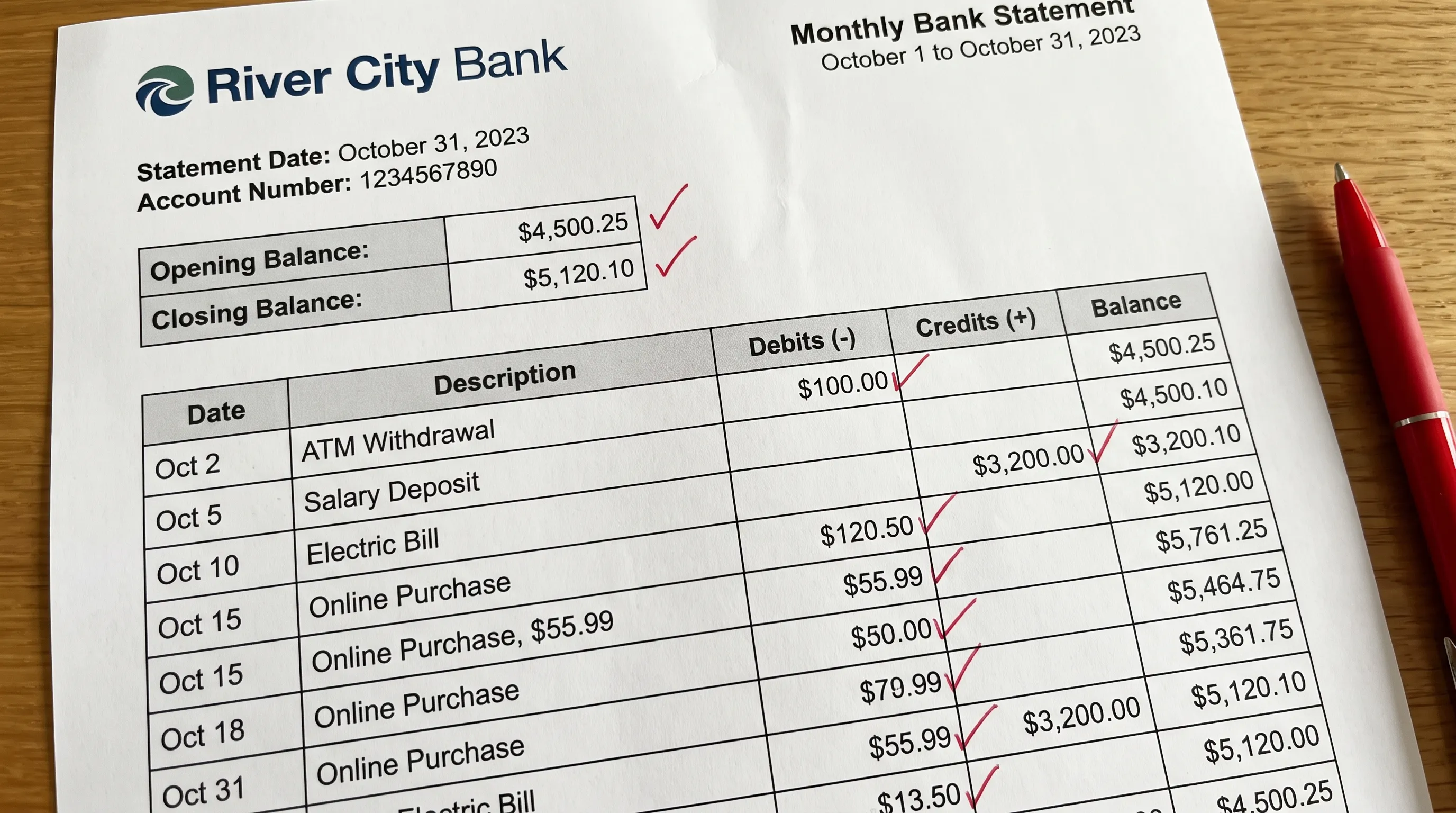
6. Reconcile pdf statements against balances and totals
For a deposit account using the usual convention, the statement-level check is:
Opening balance + credits − debits = closing balance.
For example, an opening balance of $1,250.00, credits of $800.00 and debits of $325.00 should produce a closing balance of $1,725.00. Compare the calculated result with the closing balance printed on the statement, using the statement’s precision.
Where running balances are available, check each transaction’s effect in the statement’s sequence. A statement-level mismatch tells you something is wrong; a row-level mismatch helps locate where the difference begins.
| Check | What it can reveal | Important limitation |
|---|---|---|
| Opening-to-closing reconciliation | A net difference from missing, extra or incorrect amounts | Equal and opposite errors can cancel out |
| Running-balance verification | A break at a particular transaction or row boundary | Requires balances and the correct transaction sequence |
| Declared debit and credit totals | Incorrect category totals or omitted activity | Totals must cover the same transaction scope |
Arithmetic verification of pdf statements does not prove that descriptions or dates are correct. It also cannot establish that a transaction belongs in a particular expense category. Combine it with the source-to-row review rather than treating it as a substitute.
Pass condition: Available balances and declared totals reconcile, with no unexplained difference. Never add a balancing transaction just to make extraction errors disappear.
7. Resolve dates and duplicates before posting
Identify whether each date is a posting date, transaction date or value date. Use the date required by your accounting workflow and label any additional dates separately. Do not silently replace one with another.
Resolve ambiguous formats using the statement’s convention. A date such as 04/05/2026 cannot be interpreted reliably from that row alone. Check other dates and the document’s locale before normalizing it.
Review duplicate candidates both within the extracted file and against transactions already recorded through a bank feed or earlier import. Two identical-looking payments can be legitimate, so matching the date and amount is a reason to investigate, not an instruction to delete.
Use available references, descriptions, account identifiers and source locations to distinguish repeated extraction from separate transactions. In particular, the same transaction may appear in overlapping statement files.
Before importing pdf statements, also establish whether the destination already contains pending activity that will later become posted activity. Do not count a pending entry and its posted replacement as two independent transactions.
Pass condition: Dates have a documented meaning, and every duplicate candidate has been retained or excluded for a defensible reason.
8. Test the destination mapping and retain an import record
A correct extraction can still become an incorrect import if columns are mapped wrongly. Confirm whether the destination expects one signed amount column or separate money-in and money-out columns. Check required date formats, account selection and any reference fields used for duplicate detection.
For CSV files, verify the delimiter and how descriptions containing commas or quotation marks are handled. Preserve account identifiers and references as text where leading zeros matter. Our guide to cleaning a bank statement CSV before importing covers these file-level adjustments in more detail.
Use an import preview or test environment if your destination offers one. Compare the proposed row count and amount totals with the approved export. Check that at least one incoming and one outgoing transaction are interpreted correctly, where both exist.
Keep a short approval record:
- Source filename, account identifier and statement period
- Approved transaction count and debit and credit totals
- Exceptions resolved during review
- Import date and the destination’s batch identifier, if available
The pre-import review of pdf statements is complete only when both the extracted data and its destination mapping have passed. After posting, compare the imported count and totals again, and record the result before anyone retries the same file.
Pass condition: The preview matches the approved data, and the import can be traced without accidentally repeating it.
Frequently asked questions
Can I import a file if its closing balance matches? Not on that evidence alone. A missing debit and a missing credit of the same amount can cancel out. Check row completeness, separate debit and credit totals where available, dates and duplicate candidates too.
What if the statement has no running balance? Reconcile opening and closing balances using transaction totals, compare any declared totals and review each source row. You cannot claim row-by-row balance verification when the necessary balances are absent.
Should I edit the original PDF to correct an extraction error? Keep the original unchanged. Correct the extracted working file against the source and document the change. If the source itself is unclear or appears wrong, obtain clarification or a replacement from the bank.
Does verification automatically categorize transactions? No. Mathematical checks establish whether amounts reconcile. Expense categories, tax treatment and matches to invoices require separate accounting decisions.
Start with a verified export
Extract Bank Statements converts bank statement PDFs into CSV, Excel, OFX or JSON and verifies figures against the statement’s running balance and declared totals before export. It also supports scans and photos through OCR, with free first conversions available.
Use that verification alongside these eight checks. Import only after the source is complete, the numbers reconcile and the destination mapping is confirmed.