
Why Your Bank CSV File May Not Match Your Monthly Statement
Thomas Gak-Deluen9 min read
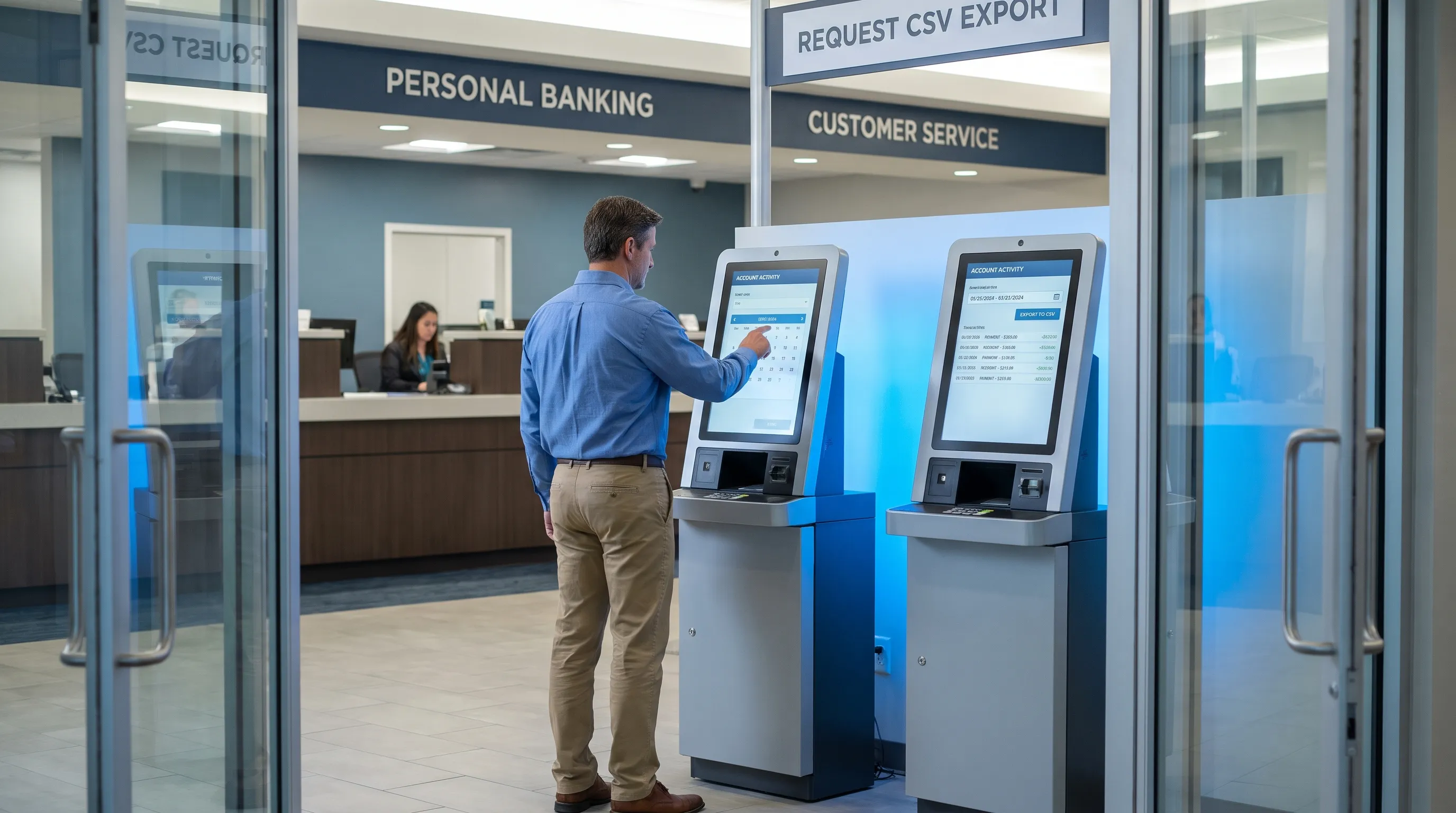
Your bank CSV file shows a different total from your monthly statement. Before you change a transaction or assume the bank made an error, check whether the two files actually cover the same records. A transaction export may use different dates, include pending activity or omit information printed separately on the statement.
The quickest way to investigate is to separate three questions: Did you download the same activity? Did the file preserve the amounts correctly? Did your spreadsheet or accounting software interpret those amounts as intended?
Why your export and statement can both be correct
A monthly statement usually presents a closed reporting period with an opening balance, posted transactions and a closing balance. A CSV is a table of data, often generated from a transaction search. Depending on the bank, it may contain only selected activity rather than everything needed to reproduce the statement.
For example, a statement covering June 4 through July 3 will not match a download filtered to June 1 through June 30. Neither document necessarily contains an error. They describe different periods.
The same applies to balances. Your current available balance may reflect pending card authorizations or holds that are not part of the statement’s closing balance. And a CSV containing transaction amounts alone does not establish an ending balance unless you also know the correct opening balance.
Start with the statement’s account details and reporting boundaries, not the month shown in its filename.
Check your bank CSV file against the exact statement period
Confirm the account, currency and filters
Check the account identifier, account type and currency in both sources. A combined online-banking view can make it easy to export several accounts or select a similarly named savings account instead of checking.
Then inspect the export settings. Look for transaction-type filters, search terms, amount limits and download limits. A screen showing only withdrawals may produce a withdrawal-only export. Banks differ in how much history they make available and whether downloads include every search result.
Treat each currency separately. Adding USD and EUR amounts into one total does not produce a meaningful balance comparison without a defined conversion method.
Compare posting dates, not just purchase dates
A card purchase made on June 30 might post on July 2. A statement based on posted activity can correctly exclude it from June even if a transaction export places it under the purchase date.
Identify which date each source uses: transaction date, posting date or value date. Check whether the download’s start and end dates are inclusive. For activity near midnight, different time zones can also affect date assignment.
If the CSV includes pending transactions, isolate them before comparing it with posted statement activity. Keep those rows in your original file; exclude them only from the reconciliation view.
Check signs and columns before calculating a difference
A bank CSV file can contain the right transactions but still produce the wrong total when its columns are interpreted incorrectly. Common structures include one signed amount column or separate debit and credit columns.
For a checking account, money received generally increases the balance and money paid out decreases it. If the export supplies separate columns containing positive amounts, calculate the movement as credits minus debits. Simply adding both columns overstates activity.
Credit card statements need different treatment. Purchases commonly increase the amount owed while payments reduce it. Confirm the account’s balance convention rather than applying checking-account signs automatically.
Also distinguish transaction amounts from running balances. Summing a balance column has no useful reconciliation meaning.
Test whether the spreadsheet changed the data
An amount such as 1.234,56 can be misread under settings that expect 1,234.56. Parentheses may indicate negative numbers, and some imported amounts may remain text instead of participating in a sum.
Dates and identifiers are vulnerable too. A date interpreted in the wrong order can move activity into another month, while stripped leading zeros can undermine reference matching.
Keep the original download untouched. Use a controlled import into a working copy, following these steps for opening a CSV without changing its data.
A worked example: a $75 difference with a simple explanation
Suppose your bank CSV file includes a pending purchase that the June statement excludes. The following fictional checking-account example shows how that affects the comparison.
The opening balance is $1,000. The statement contains a $2,000 deposit, a $600 payment and a $50 fee.
| Reconciliation item | June statement | Downloaded activity |
|---|---|---|
| Opening balance used for calculation | $1,000 | $1,000 |
| Posted deposit | +$2,000 | +$2,000 |
| Posted payment | -$600 | -$600 |
| Posted account fee | -$50 | -$50 |
| Pending card purchase | Not included | -$75 |
| Closing balance or calculated ending balance | $2,350 | $2,275 |
The statement calculation is $1,000 + $2,000 - $600 - $50 = $2,350. Including the pending purchase produces $2,275, exactly $75 less.
The correction is not to change the purchase amount or insert a balancing transaction. Exclude pending activity from the posted-transaction comparison and retain a note explaining the difference. If the purchase posts on July 2, check it against July’s posted activity.
Notice that the opening balance is an input to this example, not a transaction row to import. If your export contains an opening-balance record, check how your accounting software handles it before loading the file.
Reconcile totals, then match the individual transactions
Once the scope and amount conventions agree, compare your bank CSV file with the statement in a consistent order. For a deposit account, the basic check is:
Opening balance + posted credits - posted debits = closing balance.
Use the equivalent balance convention for other account types. Compare the credits and debits separately as well as their net effect. A missing $100 deposit and a missing $100 payment cancel each other out, leaving the ending balance unchanged despite two missing transactions.
- Compare opening and closing balances: Establish that both calculations start and end at the same reporting boundaries.
- Compare total credits and total debits: Use the statement’s declared totals where available, checking which categories those totals include.
- Compare transaction counts: Count actual transaction entries, not headings, balance records or wrapped description lines.
- Match unmatched rows: Compare posting date, amount, direction and transaction reference where available. Descriptions alone may differ between formats.
- Document exceptions: Record whether each difference is timing-related, missing, duplicated or still unexplained.
Equal amounts on the same day do not automatically mean duplicate transactions. Two legitimate payments can share both attributes. Likewise, a reversal and its original charge may both belong in the period.
Our explanation of what statement reconciliation proves and what it does not explores why a balanced total is useful evidence, but not proof that every field or transaction is correct.

Locate the failure before editing any records
Compare the raw download with the imported result
If the original CSV agrees with the statement but your accounting software does not, investigate the import rather than the bank export. Check the selected date column, debit and credit mapping, opening-balance handling and any rejected-row report.
Duplicate prevention can also explain missing imported activity. An application might skip transactions it considers already present. Conversely, overlapping downloads can introduce duplicates when the importer does not recognize them.
Compare row counts and totals at each stage: original file, working spreadsheet and imported ledger. This identifies where the difference first appears and avoids repeatedly modifying a correct source file.
Re-download incomplete or suspicious exports
A file that opens successfully is not necessarily complete. Check its earliest and latest dates, any export limits and whether its last transaction corresponds to the requested period. Re-download using explicit dates if the result seems truncated.
Repeated download interruptions warrant a separate connectivity check. For an office based in Tilburg, local business fiber connectivity is an infrastructure option to investigate. Reliable file transfer and financial reconciliation remain separate checks: a stable connection cannot correct an export filter or a missing transaction.
Do not add an unexplained adjustment just to force agreement. Preserve the discrepancy until its cause is established.
When the statement PDF is the better starting point
If your bank CSV file cannot reproduce the statement period, extracting the statement PDF can give you a dataset tied directly to that document. This is especially useful when online banking offers limited export history or the CSV lacks balances needed for verification.
Extraction still needs checking. Scanned pages can contain recognition errors, and even digitally generated PDFs can have layouts that split descriptions or separate fees from the main transaction table.
Extract Bank Statements converts statement PDFs into CSV, Excel, OFX or JSON and verifies extracted figures against the statement’s running balance and declared totals before export. It also supports scans and photos through OCR.
That verification checks consistency with the source statement. It does not establish that a transaction was authorized, assign the correct bookkeeping category or explain a genuine error in the bank’s records. Keep the PDF alongside the export so unresolved differences remain traceable to their source.
Frequently asked questions
What is a bank CSV file? It is a plain-text table of banking data, usually containing transaction dates, descriptions and amounts. Some exports also include balances, references or separate debit and credit columns. Its contents depend on the bank and the selected download settings.
How do I get a CSV from my bank? Open the relevant account’s transaction history in online banking and look for an export or download option. Select CSV if available, specify the statement’s exact dates and review any status or transaction filters. Menu names, history limits and available formats vary by bank and account.
Should the CSV total equal my statement’s closing balance? Not usually by itself. A transaction sum represents movement during the period. For a deposit account, add that net movement to the opening balance to compare it with the closing balance. Exclude non-transaction rows from the movement calculation.
What if the difference remains unexplained? Keep the original statement and download, document the affected rows and contact the bank through a secure channel. If both originals agree but imported records differ, investigate the software’s import settings. Report unfamiliar or potentially unauthorized transactions promptly rather than treating them as formatting problems.
Start with data you can check
Before importing a bank CSV file, establish that it covers the right account, dates and posted activity. Then verify its totals and investigate unmatched rows instead of forcing the numbers to agree.
If you need a statement-based export, try Extract Bank Statements with the free first conversions. Keep the source PDF and use the balance checks as part of your review before moving the data into your financial records.