
How to Open a CSV File Download Without Changing Your Data
Thomas Gak-Deluen8 min read
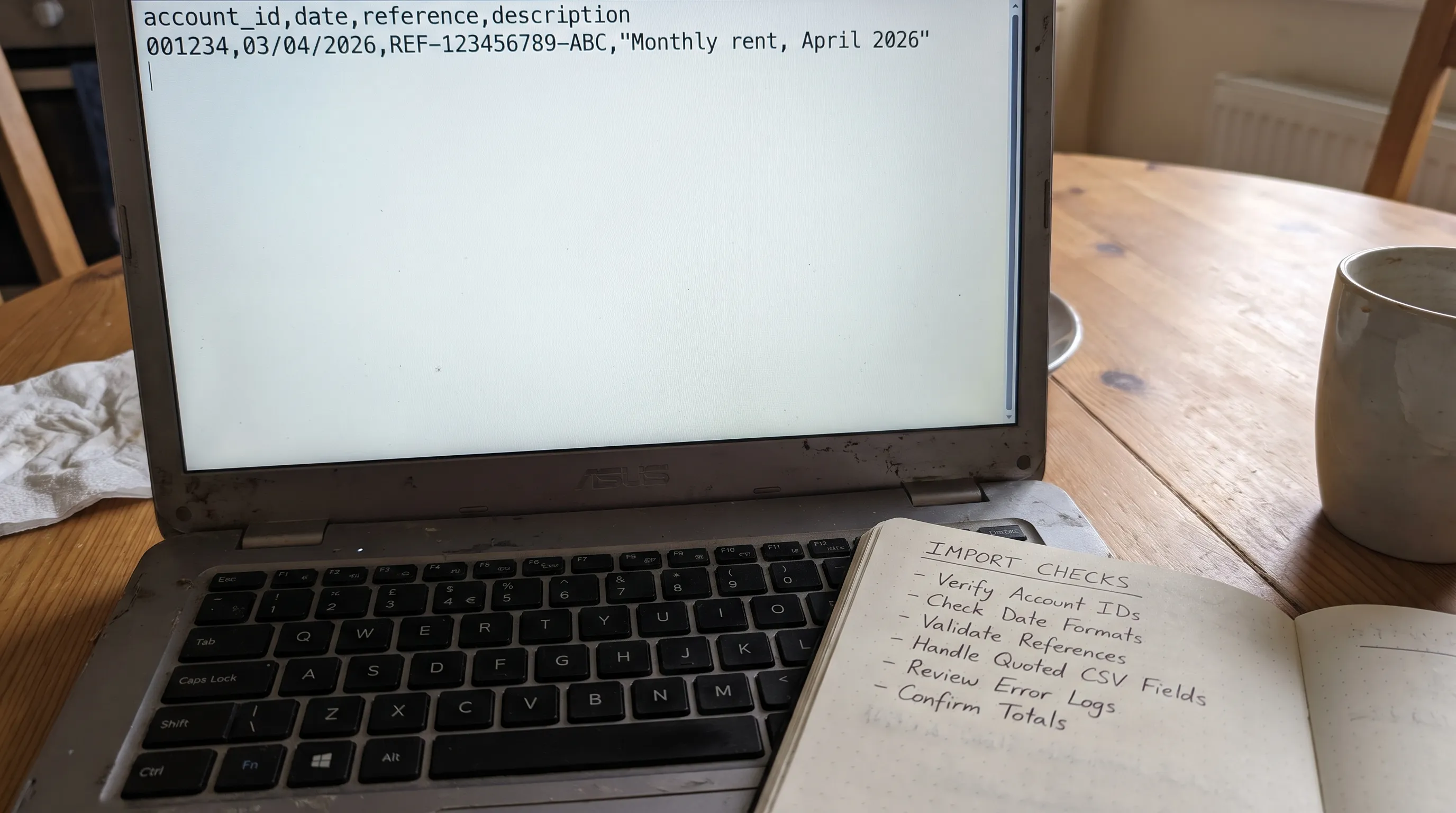
Opening a csv file download by double-clicking it can change how your data is interpreted before you have checked a single row. Account IDs lose leading zeros, long references get rounded and dates take on your computer’s regional settings.
The safer approach is to keep the original file untouched, import its fields as text and create a separate working copy. This preserves the downloaded values while you decide which columns should become dates or numbers. Here is how to do that in Excel and Google Sheets, with extra checks for bank exports.
What a spreadsheet can change
CSV stands for comma-separated values. It stores text records, not spreadsheet formatting or reliable column-type instructions. Putting quotation marks around an account number does not guarantee that a spreadsheet will treat it as text.
| Downloaded value | Possible interpretation | What is at risk |
|---|---|---|
001234 | Number 1234 | Leading zeros |
123456789012345678 | Rounded number | Exact reference digits |
03/04/2026 | March 4 or April 3 | Intended date |
1.234,50 | Text or an incorrectly parsed number | Amount accuracy |
Café | Garbled characters | Description accuracy |
Opening the file usually changes the spreadsheet’s in-memory interpretation, not the original file immediately. Saving over the CSV can make those changes permanent.
Inspect the csv file download before importing
First, save the file in a private folder and make a working copy. Check that its actual extension is .csv, not something like .csv.exe. A filename alone does not prove that the contents are valid CSV.
Open the copy in a local plain-text editor without saving changes. A small export might look like this:
date,account_id,reference,amount,description
03/04/2026,001234,123456789012345678,-42.50,"Café, card payment"
This reveals details a spreadsheet might hide: the original date text, leading zeros, full reference digits and a comma inside a quoted description. A proper CSV importer should keep that description in one field.
Check the delimiter, which may be a comma, semicolon or tab. Also look for readable accented characters and recognizable records. If the contents begin with an HTML login page, you may have downloaded a webpage instead of the requested export.
For financial records, use a local editor rather than uploading the file to an unfamiliar online CSV viewer. Keep the untouched download available throughout the process so you can compare any suspicious value against its source.
Import into Excel instead of double-clicking
For a csv file download, Excel’s import workflow gives you more control than opening the file directly. The following steps apply to desktop Excel versions with the Text/CSV connector and Power Query. Menu wording varies by platform and release.
Set the delimiter, encoding and column types
- Start with a blank workbook: Choose Data > From Text/CSV, then select your working copy. Avoid using File > Open for this first inspection.
- Check the delimiter: Choose the separator that produces the expected columns in the preview. A description containing a quoted comma should remain in one column.
- Check the encoding: Choose the encoding that matches the export. UTF-8 is common, but it is not universal. Confirm that names, currency symbols and accented characters display correctly.
- Stop automatic type detection: If the preview offers a Data Type Detection option, select Do not detect data types. Choose Transform Data to review the query before loading it.
- Inspect the applied steps: Remove an automatically added Changed Type step if one exists. Then select all columns and set their data type to Text. Removing the earlier conversion matters because setting an already-rounded value back to text will not restore its digits.
- Load and save separately: Choose Close & Load, inspect the results and save the workbook under a new name as
.xlsx. Do not replace the source CSV.
Microsoft’s text and CSV import guidance provides additional details for supported Excel versions.
Keep a raw table and a working table
Your first imported table should preserve the fields as text. Make a separate working table for calculations, sorting and reporting.
A csv file download may contain both identifiers and amounts that look numeric, but they need different treatment. Keep account IDs, transaction references and postal codes as text. Excel numeric cells cannot reliably preserve identifiers longer than 15 significant digits.
Convert only genuine amount columns to numbers, using the source’s decimal and thousands separators. Parse dates with a confirmed format and locale, rather than guessing from an ambiguous value such as 03/04/2026.
If identifiers are your main concern, the guide to preserving leading zeros in CSV exports explains why export settings and import settings must work together.
Open the file safely in Google Sheets
In Google Sheets, start with a blank spreadsheet and choose File > Import > Upload. Select the CSV and import it into a new spreadsheet or sheet rather than replacing existing records.
Choose the correct separator. In the CSV import dialog, turn off Convert text to numbers, dates, and formulas before importing. This prevents automatic conversion of fields you need to preserve exactly.
After import, inspect representative cells in the formula bar, not just the visible grid. A narrow column may hide part of a value even when the stored text is intact. Conversely, widening a column cannot restore digits that were already rounded during conversion.
Keep the imported sheet unchanged and duplicate it for analysis. Convert amounts and dates only on that working sheet, with the spreadsheet locale set to match the source conventions.
Uploading a csv file download to Google Sheets also places its contents in a cloud service. For bank records, confirm that this is permitted by your organization’s data-handling rules and check the spreadsheet’s sharing permissions.
Verify the import before using the numbers
A table can look tidy and still be incomplete. Before using it for reconciliation, bookkeeping or reporting, check both its coverage and its values.
Check records, dates and exact text
Compare the imported transaction count with the source where a reliable count is available. Do not count physical text lines as transactions: a quoted CSV description can contain an embedded line break.
Confirm that the earliest and latest transaction dates match the requested export period. Check whether the source includes pending transactions, posted transactions or both. An export of account activity may not cover exactly the same dates as a monthly statement.
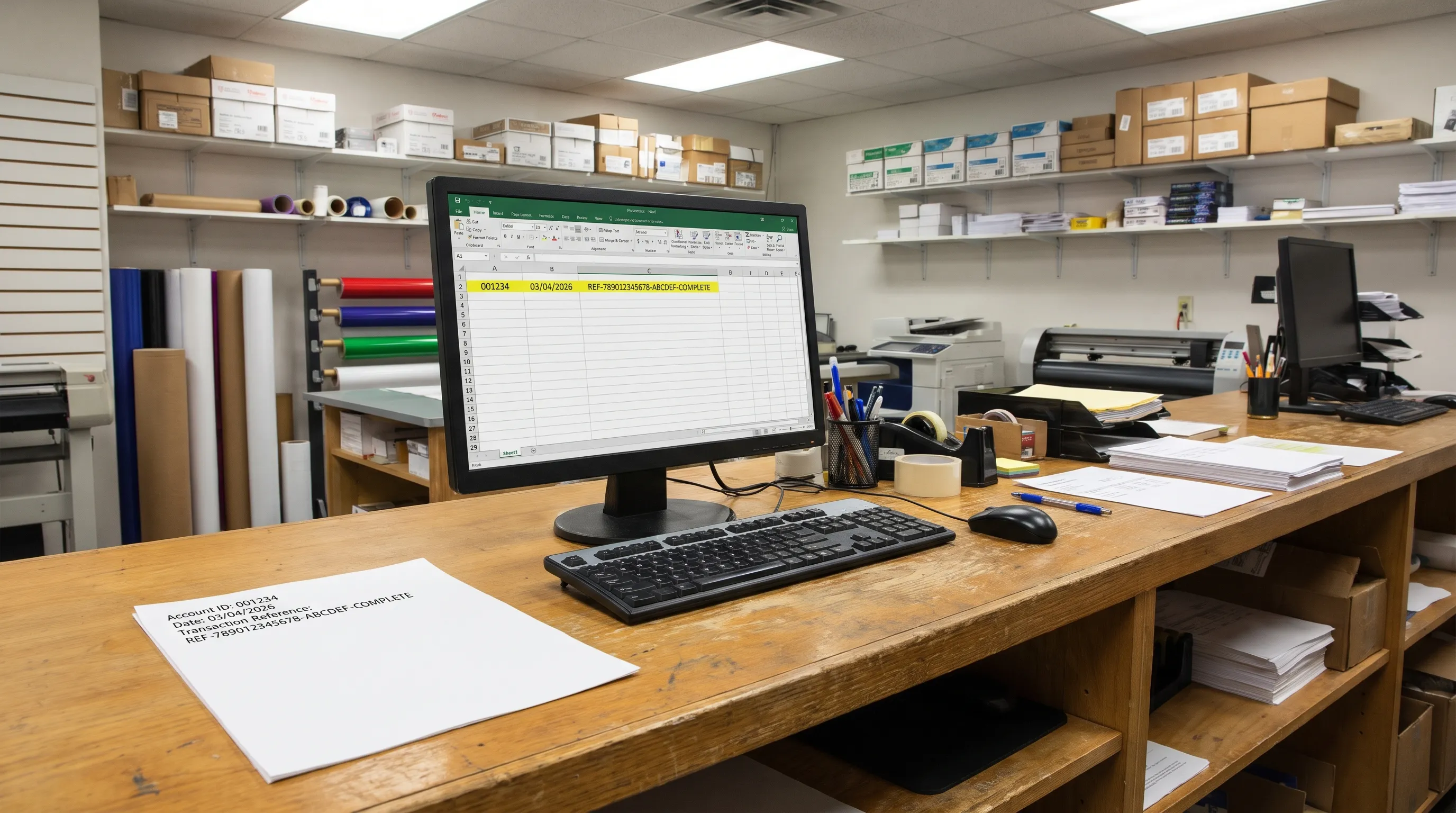
Spot-check a leading-zero identifier, a long reference, an accented description and an ambiguous date. If these survive unchanged, you have tested several common conversion failures, though this does not prove every record is correct.
Reconcile amounts against the statement
Use the numeric columns in your working table to compare debit totals, credit totals and balances with the statement. Confirm the sign convention first. For an account where credits increase the balance:
Closing balance = opening balance + credits − debits.
Credit card statements and other account types may present signs differently. Apply the statement’s convention rather than assuming every positive amount is money received.
Where running balances are available, check the movements in the appropriate transaction order. A correct final balance alone cannot rule out offsetting errors or a missing debit and credit of the same amount.
If you find duplicate headers, split descriptions or unwanted summary rows, preserve the original and follow a separate bank statement CSV cleaning workflow. Cleaning should be a documented step, not an accidental side effect of opening the file.
Save and share without changing the source
Once a csv file download is imported correctly, keep three clearly named files: the original export, the raw imported workbook and the working workbook. Restrict access to all three when they contain financial information.
Saving a workbook back to CSV does not preserve workbook features such as multiple sheets and cell formatting. Re-exporting may also change quoting, encoding or line endings. Preserving the same field values is not the same as preserving the original file byte for byte.
If you need a new CSV for accounting software, export from the approved working table, use a new filename and inspect that new file again before uploading it.
Treat unexpected formula-like content as untrusted. Some spreadsheet applications can evaluate entries beginning with = and other characters as formulas. Keep unfamiliar entries as text and do not enable external content merely to view a download.
Use synthetic records when asking someone to troubleshoot a public download or website import. If your business uses a fully managed website service such as PageTend, attach a made-up sample to an update request instead of sending real bank transactions. A useful test file reproduces the delimiter or formatting problem without exposing customers, account numbers or balances.
Frequently asked questions
Does opening a CSV file overwrite it? Usually not immediately. A spreadsheet can reinterpret values in memory while the downloaded file remains unchanged. Saving over the original can write those altered values back to disk, which is why a separate working copy matters.
Why does my csv file download open in one column? The importer probably selected the wrong delimiter. Import it again and choose the actual separator, such as a comma or semicolon. Do not replace every comma manually, because some commas may belong inside quoted descriptions.
Can I recover leading zeros by formatting the cells afterward? A custom number format can display zeros when the required length is known, but it does not prove what the original field contained. Re-import the untouched CSV as text to recover the source value. Rounded long references also require re-importing from an intact source.
How do I download CSV data from my bank? Sign in through your bank’s official website, find the transaction or activity export option, choose the account and date range, then select CSV if offered. Available formats vary. Check the exported period and transaction status before treating it as a complete statement record.
If your bank only provides a PDF
The same preservation rules apply when you create a csv file download from a bank statement PDF: keep the source, check the extracted figures and import identifiers as text.
Extract Bank Statements converts bank statement PDFs into CSV, Excel, OFX or JSON, with OCR support for scans and photos. It verifies extracted figures against the statement’s running balance and declared totals before export. That provides a checked starting point, while careful spreadsheet importing helps preserve those figures afterward.