How to Convert a Bank Statement to PDF for Secure Records
Thomas Gak-Deluen8 min read
The safest way to save a bank statement to PDF is usually to download the original statement directly from your bank. If that option is unavailable, you can print an online statement to PDF, scan a paper copy or export a spreadsheet as a PDF report. These methods produce different kinds of records, so choosing the right one matters.
This guide explains each route, what to check before keeping the file and how to protect account information when storing or sharing it.
Choose the right PDF method
Start with the source you already have. A bank-issued statement and a PDF you create from a transaction spreadsheet are not interchangeable, even if they show similar information.
| Your starting point | Recommended method | Main limitation |
|---|---|---|
| Statement available in online banking | Download the bank’s original PDF | Availability and archive periods vary by bank |
| Statement displayed only as a webpage | Use the bank’s print view, then save as PDF | Page breaks or columns may change |
| Paper statement or photos | Scan all pages into one PDF | Capture quality affects readability |
| CSV or Excel transaction file | Export a clearly labeled PDF report | It is not an original bank-issued statement |
If a lender, accountant or government agency requested the document, check its requirements first. It may require original statements, all pages or an unmodified file rather than a self-created report.
How to download a bank statement to PDF
Use your bank’s website or official mobile app. Menu labels differ, but the process usually follows this pattern:
- Open the correct account: Confirm whether you need a checking, savings, business or credit card statement.
- Find the statement archive: Look for labels such as Statements, Documents or eStatements rather than the recent-transactions screen.
- Choose the statement period: Select the month or date range requested. A statement period may not match a calendar month.
- Download the PDF: Use the bank’s download option and save the file somewhere you control.
- Open the saved copy: Confirm that the download completed and the document contains the expected pages.
Keep this original file unchanged. If it already meets your needs, there is no benefit in uploading it to another service simply to create another PDF.
Some banks offer both a statement download and a transaction export. Choose the statement for an official record. CSV downloads are more useful for calculations and accounting imports.
Save an online statement using Print to PDF
When an original download is unavailable, open the bank’s dedicated statement or print view before using your browser’s print command. A general account dashboard may show only recent activity or transactions loaded on screen.
On Windows, select Microsoft Print to PDF if available. On macOS, use the print dialog’s PDF menu and choose Save as PDF. Browsers may also provide their own Save as PDF destination. Mobile printing and export options depend on the app and operating system.
When saving a bank statement to PDF this way, inspect the print preview before saving. Set the page range to include the entire statement and adjust orientation or scale only as needed to keep every column visible.
Watch for clipped balances, blank pages and browser headers that reveal unnecessary information. If transaction rows disappear or only the first screen of activity appears, stop and use another method.
Printing creates a new document. It may lose interactive features or digital-signature information from an existing PDF, so do not print an original bank PDF again unless a separate working copy is necessary.
Turn paper statements or photos into a PDF
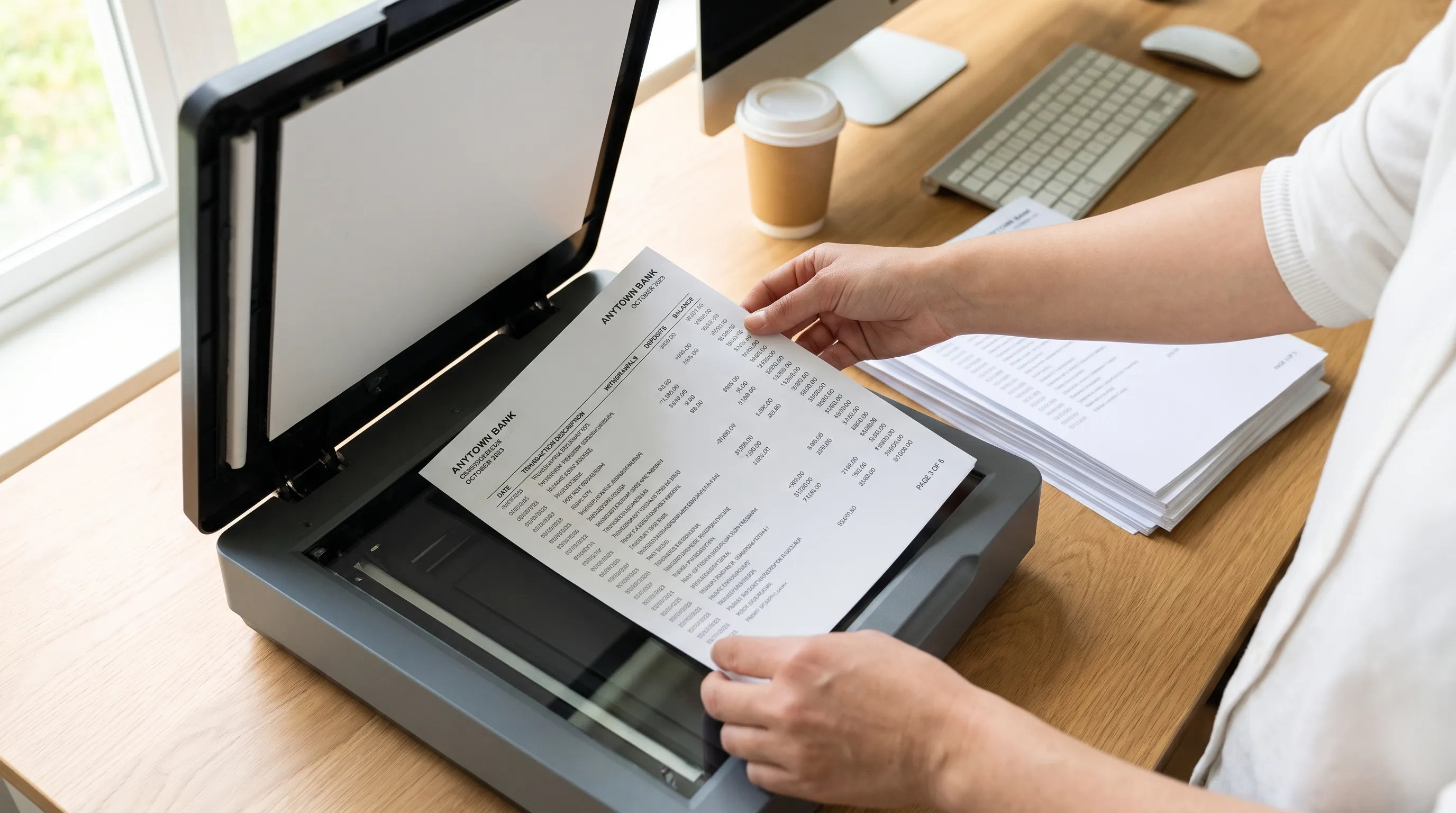
For paper records, use a scanner or a document-scanning app that can combine multiple captures into one PDF. Scan every statement page, including reverse sides containing transaction details or continuation pages.
To convert a paper bank statement to PDF reliably, start with a flat page, even lighting and a clean lens or scanner glass. Around 300 dpi is a practical starting point for ordinary printed statements. Check the result rather than assuming a resolution setting guarantees clarity.
With a phone, keep the camera parallel to the page. Avoid shadows, glare and cropping that removes page numbers or account details. Put the pages in their original order before exporting.
Our guide to scanning bank statements clearly and completely covers capture quality in more detail.
OCR can add a searchable text layer to a scanned PDF, but it does not prove that every number was recognized correctly. Keep the visible page image and review any extracted text before relying on it for financial work.
Export CSV or Excel data as a PDF report
If your starting point is a spreadsheet, open it in a spreadsheet application and use its PDF export or print function. Define the print area, repeat column headings where supported and make sure descriptions and amounts fit on the page.
Check dates, negative signs and leading zeros before exporting. Widening a column can fix a display problem, but it cannot restore information that was already altered during import.
Label the result clearly, for example, “Transaction report exported from CSV.” Keep the source spreadsheet alongside it.
A spreadsheet-generated PDF is useful for internal review, but it does not become an original bank statement because it has the same transactions. If a recipient requires bank-issued evidence, obtain the statement from the bank instead.
Check the PDF before you keep or send it
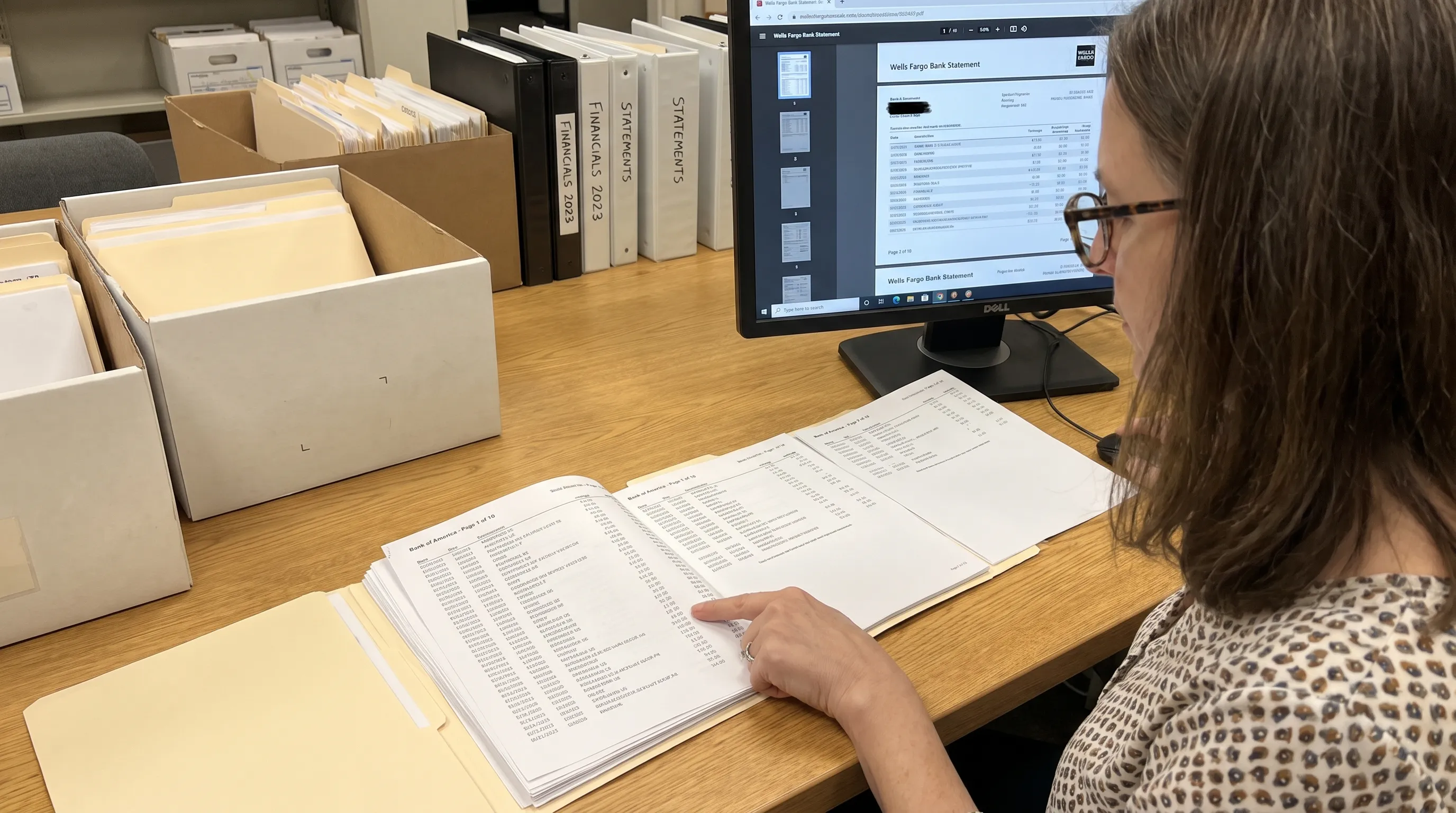
After converting a bank statement to PDF, reopen the saved file from its destination folder rather than relying only on the export preview. Confirm that it belongs to the right account and covers the requested period.
Compare the page count with the source. Check the first and last transaction pages, then inspect page boundaries where rows or descriptions could have been cut off. Make sure debit, credit and balance columns remain distinguishable.
Look closely at decimal points, minus signs and faint text on scanned pages. Verify that opening and closing balances are readable and that no pages are duplicated or out of order.
These checks establish completeness and usability, not authenticity. A convincing layout or a set of matching totals does not, by itself, prove that a document came from a bank.
Protect account information in storage and transit
Saving a bank statement to PDF does not automatically encrypt it. An ordinary PDF can expose names, addresses, account numbers and transaction histories to anyone who can access the file.
Store statements in a protected folder or document system with access limited to the people who need them. Use strong account credentials and multifactor authentication for online storage. Avoid leaving copies in shared download folders or on public computers.
For delivery, use the recipient’s verified secure upload portal when one is available. If you use password-based PDF encryption, choose a strong password and communicate it through a separate channel. Do not confuse restrictions on editing or printing with encryption that protects the file’s contents.
If only part of a statement is needed, ask whether redaction is acceptable. Use a proper redaction tool on a separate copy, not a black rectangle drawn over text. Check that the removed content cannot still be selected or searched, then retain the untouched original securely.
Organize records by account and statement period
Use filenames that make retrieval easy without exposing full account numbers. A pattern such as BankName_Checking_4821_2026-09_original.pdf identifies the account with its last four digits and distinguishes the original from working copies.
When you save a bank statement to PDF each month, use the same naming pattern and folder structure. Keep redacted copies, OCR versions and spreadsheet exports clearly separate from the original.
For business archives, organize related invoice records without confusing them with bank evidence. The Kontozz guide to managing invoice books explains invoice-book names, prefixes and year-end closure, useful controls for the invoice side of a period-end archive. Bank statements still need their own account and statement-period identifiers.
Set retention rules according to the record’s purpose and applicable requirements. For US tax records, the IRS recordkeeping guidance explains why retention depends on the underlying circumstances rather than one universal deadline.
Need transaction data instead of another PDF?
Saving a bank statement to PDF preserves a readable document. It does not necessarily create structured transaction data that accounting software or a spreadsheet can use.
If your next task is sorting expenses, reconciling transactions or importing entries, you may need CSV, Excel, OFX or JSON instead. Keep the original PDF as the source record and create a separate data export.
Extract Bank Statements works in that opposite direction: it converts statement PDFs into structured formats and verifies extracted figures against the statement’s running balance and declared totals before export. It also supports scans and photos through OCR. Numerical verification helps identify extraction inconsistencies, but it does not independently authenticate the source document.
For spreadsheet-specific issues, see our guide to converting PDF files to Excel without formatting errors, including the handling of dates, descriptions and financial amounts.
Frequently asked questions
Can I download a statement as a PDF from my banking app? Many banks provide statement downloads through their apps, but availability varies. Look in the account’s statement or document section. If the app only shows recent activity, check the bank’s website for the statement archive.
Does converting a bank statement to PDF make it secure? No. PDF is a document format, not a security guarantee. Protection depends on storage permissions, encryption where appropriate and how the file is shared. Preserve the original and avoid unnecessary copies.
Can I convert a PDF bank statement to CSV? Yes. A statement-extraction tool can turn transaction rows into structured data. Review the output and check it against the source, particularly when OCR is involved or descriptions wrap across several lines.
Will a screenshot count as a bank statement? That depends on the recipient’s rules. Screenshots often omit the statement period, account information or continuation pages. Download the original statement whenever possible and confirm requirements before submitting an alternative.
Keep the original, export only what you need
Use the bank-issued PDF when available, check every page and protect the saved file. If you need usable transaction data afterward, Extract Bank Statements can convert the PDF into CSV, Excel, OFX or JSON while checking the extracted figures against the statement.